 BC LS Retail Tips
Store not found errors in replication: distribution setup gone wrong
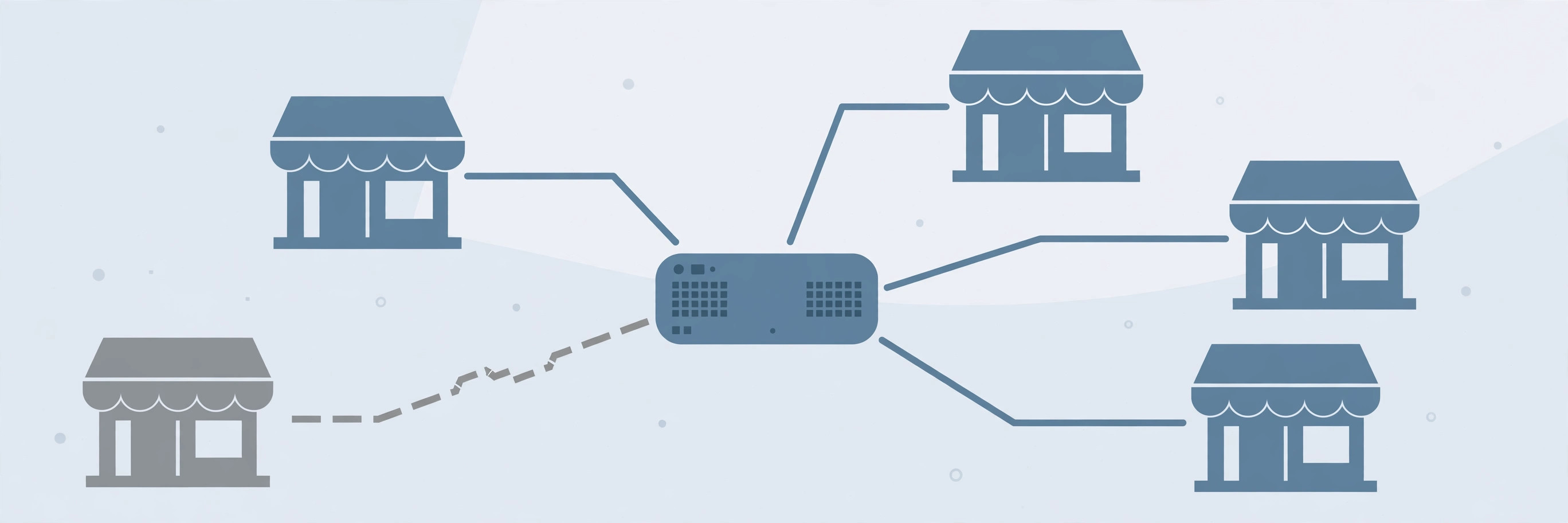
A "store not found" error in LS Central replication sounds like a network failure. It usually is not. It means a scheduler job went looking for a store in the distribution setup and the store, as the job identifies it, was not there. The job and the distribution-location table are two records of which stores exist, the error is the moment they disagree.
That framing turns a vague error into three questions, asked in order: does the distribution location exist and is it switched on for replication? Does the job actually point at it? And can the connection on that location work? Answer them in that order and the missing store shows up at one of the three.
What 'not found' means: the job looked for a store the setup does not have
Replication setup is held in two places. Distribution locations are created in the Distribution Location List on the Scheduler server, the table of destinations the scheduler knows about. Scheduler jobs are the instructions that send data to those destinations. A job does not discover stores on the network; it resolves the locations it was configured with against that list. If the resolution fails, the store is "not found" even when the store's systems are up and reachable.
So the diagnosis is a comparison, not a ping. Open the job and the Distribution Location List side by side and find where they stop agreeing.
Question 1: does the distribution location exist, and is it active for replication?
- Open the Distribution Location List on the Scheduler server.
- Find the location for the missing store. Each distribution location carries a Code and Description on its General FastTab, check the code character by character against the code the job is using. A location created for the store under a different code is, to the job, a store that does not exist.
- If the location exists, open its Replication FastTab and check the Active for Replication switch. A location that exists but is not active for replication is present in the list and absent from replication, the same error from the job's side of the table.
What success looks like: a distribution location whose code matches the job's code exactly, with Active for Replication on. If you found and fixed a code mismatch or an inactive switch here, re-run the job before going deeper, most not-found errors end at this question.
Question 2: does the job point at it? To-Location, include/exclude, sublocations
A job selects its locations in one of two ways: in the Receiver Locations Include/Exclude list, or in the To-Location Code field. Check whichever the job uses, and if it uses the include/exclude list, check the sense of the entry. A store listed to be excluded is a store the job has been told to skip; a store missing from an include list never gets selected in the first place.
Then check Distribution Sublocations. The setting has three options, and they change which parts of a location a job touches:
- Excluded from Replic., sublocations are left out of replication.
- Included in Replic., sublocations are replicated along with their location.
- Only Included in Replic., only the sublocations are included: in the documented definition, only POS terminals, not their store.
The third option is the trap. A job set to Only Included can reach a store's terminals while the store itself is outside the job's selection, from the store's side, replication "does not find" it, because the job was never aimed at it. And one hard limit from the documentation: sublocations do not work with Web Replication, so a sublocation-based selection cannot rescue a web replication job.
While you are on the job, confirm its plumbing: replication jobs should use codeunit 99008923 (LSC Data Distribution WS), regardless of whether the job runs via Data Director or Web Replication. A job built on the wrong codeunit fails before location selection is even the question.
Question 3: can it connect? The Replication FastTab and Test Connection
A location that exists, is active, and is correctly selected can still fail if its connection record is incomplete. Completing a distribution location's Replication FastTab requires all of: the connection type, the company name, the user, the DB server and path, Version LSBC, Driver SQL, Net Type tcp, and the Active for Replication switch from Question 1. The location's other FastTabs carry their own connection detail, the Data Director FastTab holds the mode (TCP) and the Distribution Server computer name, and the WS Distribution Server FastTab holds the DDWebservice URL.
- Walk the Replication FastTab field by field against that list. A blank company name or DB path is a store the connection cannot resolve, however good the job looks.
- Run Test Connection. It should succeed before you continue, and when it fails, its error message indicates what is wrong. Read the message and fix the field it names rather than re-saving the whole card and hoping.
What success looks like: Test Connection passes on the store's own location record. At that point the job can find the store and reach it; any remaining failure is a data or job-content problem, not a not-found problem.
Web Replication variant: read the queue's Last Error before changing setup
If the failing job is a WEBREPLICATION job, the error you need is not the one on screen. LS Retail's Offline POS troubleshooting gives the diagnostic path directly: for WEBREPLICATION job errors, open the Web Replication Request Queue, and then the Distribution Queue, to see the last error in the Last Error field.
- Open the Web Replication Request Queue and find the failed request for the store.
- Open the Distribution Queue entry and read the Last Error field in full.
- Match the error to the three questions above, a missing or inactive location, a selection problem on the job, or a connection field, and fix that one thing.
Changing setup before reading Last Error destroys the only record of what the job actually hit. Read first, fix second. Remember also the limit from Question 2: sublocations do not work with Web Replication, so if Last Error points at selection, the fix lives in the include/exclude list or the To-Location Code, not in sublocation settings.
The pre-flight checklist for adding store number N+1 to replication
Every not-found error above is a step someone skipped when a store was added. Run this list before the new store's first replication job, not after its first error:
- Create the distribution location in the Distribution Location List, with the Code and Description on the General FastTab, using the exact code the jobs will use.
- Complete the Replication FastTab in full: connection type, company name, user, DB server/path, Version LSBC, Driver SQL, Net Type tcp.
- Turn on Active for Replication, and fill the Data Director FastTab (mode TCP, Distribution Server computer name) or the WS Distribution Server FastTab (DDWebservice URL) as your replication path requires.
- Run Test Connection and do not continue until it succeeds.
- Add the location to each job that must serve it. Receiver Locations Include/Exclude or To-Location Code, and set Distribution Sublocations deliberately, knowing Only Included reaches terminals, not the store, and that sublocations do not work with Web Replication.
- Confirm the jobs use codeunit 99008923 (LSC Data Distribution WS).
- Run one job manually. For a web replication job, check the Distribution Queue's Last Error is empty afterwards.
What success looks like: the manual run completes, the queue shows no Last Error, and the store received data. The store was findable because every record that names it, location, job, selection, connection, was made to agree before the scheduler ever went looking.
, Dex Carter, Tech Writer
IndexBack to all guides →