Replication scheduler and Data Director: tuning how LS Central moves data
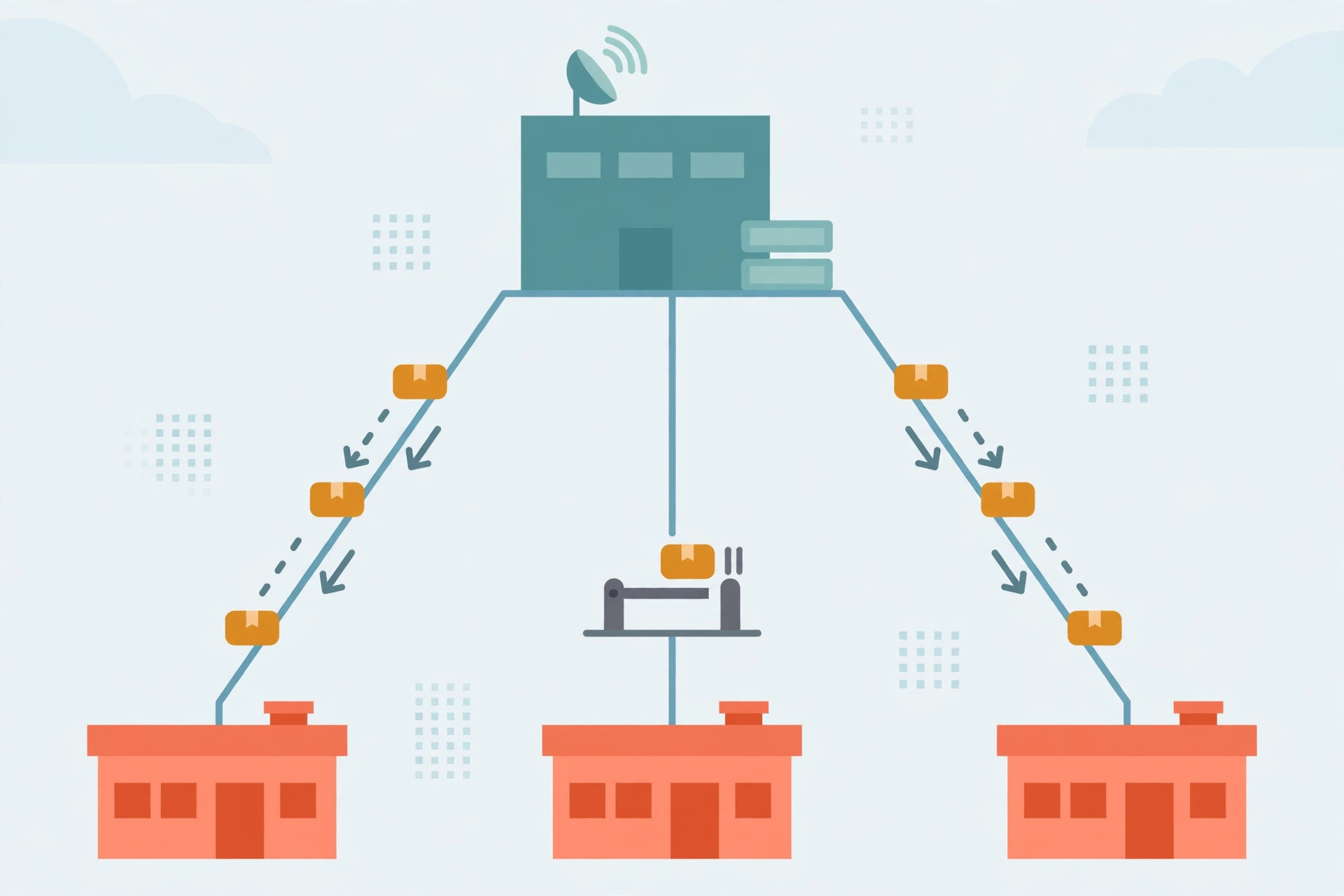
Replication in LS Central fails quietly. Prices reach one store and not another, a job shows as finished at head office while a destination is still waiting, and the first symptom is a cashier selling at yesterday's price. Tuning is not about making replication faster in the abstract. It is about understanding the handoff between the Scheduler and the Data Director, choosing the right transport for each flow, and checking the few places where a stalled job hides.
This guide covers the classic Data Director path, the newer web replication path, and the operating checks that keep both honest. Version-specific field layouts vary, so confirm names in a test company before changing a live schedule.
The moving parts: Scheduler, Data Director, and distribution locations
The Data Director is an application specialised in moving data between databases in a fast and efficient way. It works intimately with the Microsoft Business Central platform, but it is not limited to that platform: it can also move data between other database types, such as MS SQL Server and MySQL. Generally, if a database supports the Microsoft OleDB or ODBC interface, the Data Director should be able to use it.
Three behaviours explain most of its tuning surface. First, the Data Director replicates by aggregating data into packages, which minimises the amount of data transmitted over the network — one larger package is cheaper to move than a stream of tiny transfers. Second, it runs as a service and listens for incoming requests or packages, so a stopped service means nothing moves even when every job looks correctly scheduled. Third, the division of labour is strict, in three steps:
- The Scheduler picks up the job that is ready to run and reads it from its configuration.
- The Scheduler hands the job over to the Data Director for execution.
- The Data Director creates the package according to the information in the job configuration.
That split matters for diagnosis. A wrong schedule is a Scheduler problem. A package that never leaves, or a connection that never answers, is a Data Director or distribution-location problem. Distribution locations are the address book for the whole system: each destination is a distribution location record, and the job states where data comes from and where it goes. In the documented cloud-to-Analytics setup, for example, imported jobs carry a From-Location code of LSCCLOUD and a To-Location code of LSINSIGHT — the same pattern applies when the destinations are stores instead of an analytics database.
One more branch exists for cloud estates. To replicate data between head office in SaaS and HCCS and offline POS terminals, the Data Director needs to use web services, and that is switched on with the Use WS setting in the Data Config tab of the DD configuration tool. If that setting is off in a SaaS estate, the rest of the tuning in this article will not rescue the flow.
Data Director or web replication: choosing the transport
Web replication is the alternative transport. It replicates data between databases or companies without the Data Director, as an internal Business Central process in two steps: the replication job is scheduled in the usual way, but its request goes to an internal web replication module instead of the Data Director, and that module then performs the actual replication. Choosing between the two is a decision framework, not a fashion choice:
| Question | Data Director | Web replication |
|---|---|---|
| Where does the work run? | A separate service that listens for requests and builds packages | Inside Business Central, run by a Scheduler job |
| Direction | Defined by the job's from- and to-locations | Push only: the From Location Code can only be the current location |
| Deletes | Governed by the job configuration | Normal jobs support Add-Update only, not Delete |
| Table shape | Defined per job and subjob | Identical tables only: same table to same table |
| Destination requirement | A reachable distribution location and Data Director connection | A valid Web Server connection on every destination's Distribution Location Card |
The practical reading of that table: web replication suits straightforward push flows between identical tables where no deletes need to travel — master data pushed out from head office is the clean case. Anything that needs pull behaviour, delete propagation, or a different table shape belongs on the Data Director path. Mixing the two without writing down which flow uses which transport is how estates end up with two half-understood pipelines instead of one.
Activation also differs. For web replication, open the Scheduler Job Card, go to the Object Setup FastTab, enter codeunit 99008923 in the Object No. field — that is the codeunit used for Data Director replication — and select the Use Web Replication check box. The module that processes the requests is itself run by a Scheduler job connected to codeunit 99009521, and its user interface lives on the Scheduler Setup page. Each destination also needs a published web service for delivery: codeunit 99009520 published with the service name WebReplicationODataMgt, using an OData V4 Inbound Action.
Tuning procedure: set up and stagger the pipeline
Work through the pipeline in the order data flows. Do not start by changing intervals — start by proving each handoff works once, manually, before any schedule touches it.
- Create and prove the distribution locations. From the Distribution Location List, use New to create each location. On the Data Director FastTab set the Data Director mode to TCP and the Distribution Server to the computer name of the machine where the Data Director is running — the same name shown as Host name in the Configuration tool. On the WS Distribution Server FastTab, the documented pattern sets the Distribution Server URL to http://<DistributionServer>/DDWebservice with Distribution Server Auth Type set to None. Then run Test Connection: a successful test reports how long it took. Both connections should test successfully before continuing, and a failure most likely means the connection string is not correctly assembled.
- Give every job its receivers. Imported or copied jobs are inert if nobody receives them. In the documented package the four imported jobs are INS_ACTIONPRELOAD, INS_ACTIONS, INS_NORMAL_COUNT and INS_NORMAL_FULL. For each job, open Related, then Job, then Receiver Groups, and add the ALL group if no store group is visible. Repeat for every job, not just the first one that errors.
- Run the one-time work first, by hand. A preload-style job that gathers data created without actions is run first and only once: from the Scheduler Job List, open the job and choose Run Now. If an error says the job has no receiver, that is the receiver-group step above, not a transport fault.
- Enable the NAS scheduler. On the Scheduler Setup page, activate the Enable NAS Scheduler check box, close the page so the change saves, then restart the LS Central service in Service Tier Administrator. Back in Scheduler Setup, the Scheduler is Running check box should now be active. Without this step, schedules exist on paper and nothing fires.
- Stagger chained work instead of stacking it. The documented recommendation for chained schedules is to run them in order with approximately two hours between stages, starting the first run after closing hours so replication does not interfere with other usage of LS Central. Jobs will wait until the earlier one has finished before running, so times set closer together still sequence correctly — but the buffer is what absorbs a slow night. Apply the same thinking inside a store estate: heavy full loads first, frequent small counter-based updates in their own window, and nothing heavy competing with opening hours.
- Change schedules in the right place. Once NAS has started, schedules are changed from the Scheduler page — the schedule can no longer be changed from the job card. If locking errors appear while changing a schedule, disable the NAS by clearing Enable NAS Scheduler and restarting the service, make the changes, then re-enable it and restart again. Fighting the lock instead of pausing the scheduler is wasted effort.
What success looks like
A tuned pipeline is boring, and boring is verifiable. Test Connection succeeds on every distribution location and reports a time. The Scheduler is Running check box is active after the service restart. A manually run job completes, its receivers are the intended locations, and the destination actually shows the new or changed records — not just a finished status at head office. On the web replication path, processed requests leave the queue and appear in the Web Replication Request Log, because a request is only moved to the log once it has been fully processed. If any of those checks fail, the schedule is not ready to be left alone overnight.
When replication stalls: checks in order
Start at the Data Director itself. Open the DD Configuration tool as administrator and use the Job Monitor button on the Debugging tab to see jobs running — or, more usefully, to see that nothing is running when something should be. A silent Job Monitor with a healthy-looking schedule points back to the service, the NAS state, or a connection that was never proven with Test Connection.
On the web replication path, understand the queue's strictest rule before cancelling anything: a request is not removed from the queue until it has been fully processed, and if the oldest request for a location is not processed, no other requests are processed for that location. One poisoned request therefore blocks every later request for the same store, while other stores keep flowing — the classic pattern of one store stuck and the rest fine. Delivery, the fourth step of the process, has the highest potential for failure precisely because it depends on web connections. A request is not closed until it has been delivered to all locations or cancelled, and cancelling is recommended only as a last resort, because cancelled locations are recorded as locations that will never receive that data. Fix the oldest blocked request first; cancel only when the data genuinely can never be delivered, and then plan how those locations get the missing data another way.
Finally, re-check the boring causes in order: distribution server name still matching the machine running the Data Director, receiver groups still present on jobs that were copied or re-imported, NAS still enabled after a service restart or an editing session where it was disabled to change a schedule. Most replication incidents are one of those three wearing a disguise.
Note: field names, codeunit numbers, and setup paths above follow the published LS Central and LS Retail documentation for the versions cited. Confirm them against the exact version in a test company before applying schedule changes to a live estate.
IndexBack to all guides →