Register station acting up: a POS hardware checklist before you call support
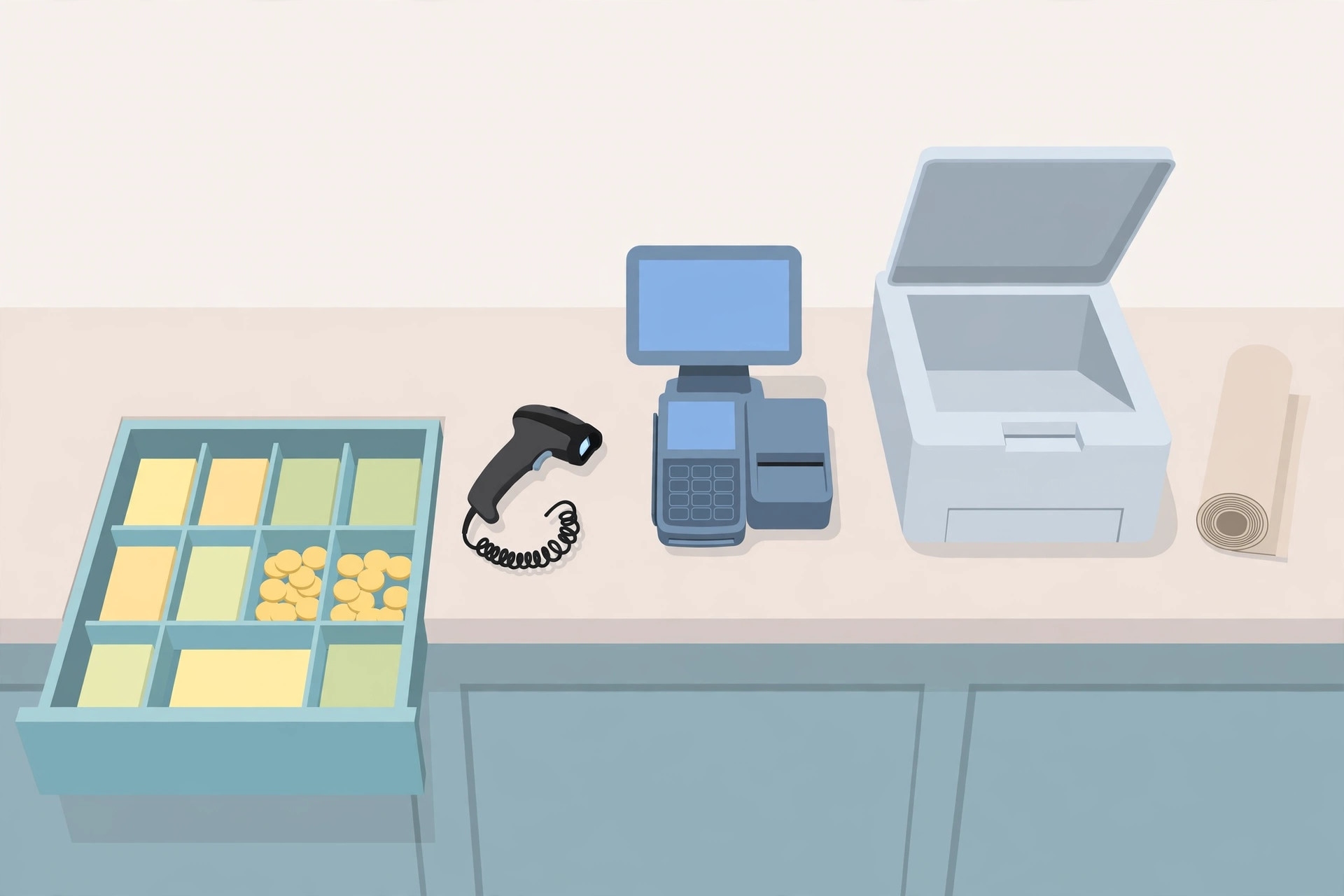
A register station rarely fails all at once. One printer stops, one scanner sulks, or the drawer stays shut while the queue builds — and the first support call usually starts with questions the store could have answered in ten minutes. Work this checklist in order: power and cables first, then the single failing device, then the LS Central layer that generic POS guides never mention. Stop at the step that fixes it, and note which step it was. That note is what turns a vague support ticket into a short one.
First: is it one device or the whole station?
This one distinction splits the problem in half before you touch anything:
- Everything at the station is dead or frozen. Suspect power, the terminal itself, or the connection the station depends on. Start at step 1 below and do not skip ahead to individual peripherals.
- Sales still ring up, but one device misbehaves. The terminal and the POS are probably fine. Go straight to the device checks in step 4, then the LS layer in step 5 if the device itself looks healthy.
- The screen is frozen but the station was working minutes ago. Give a frozen screen 30 seconds before forcing anything — a busy terminal sometimes recovers on its own, and a forced restart mid-transaction creates a second problem.
The station checklist, in order
- Check power at the wall, not at the device. A dead outlet, a loose cable, or a tripped surge strip are the standard causes of a terminal that will not turn on. Test the outlet with another device, reseat the power cable at both ends, and confirm any power strip or surge protector in the chain is switched on and working.
- Reseat every cable on the failing path. Look for loose connectors and frayed wires while you do it. Unplug and reconnect both sides of the cable — a connector that looks seated is not always seated.
- Power-cycle in the right order. Power down the terminal and its peripherals, wait at least 30 seconds, then restart. A clean restart clears temporary communication glitches between the terminal and its devices, and it is the cheapest test you will run all day.
- Isolate the one failing device using the per-device checks in the next section. Change one thing at a time: if you reseat three cables and restart two devices at once, you will fix the problem without learning what it was — and it will be back next Saturday.
- Test the device outside the POS (step 5 below). In LS Central, the Hardware Station Management Portal can run basic device tests — opening a drawer or displaying a message on a line display — without a sale in progress. A device that passes there but fails in the POS is a configuration problem, not a hardware problem.
- Check the Hardware Profile (step 5 below). Confirm the terminal's profile actually contains the device, synced from the Hardware Station rather than typed in by hand.
- Swap in a known-good spare or cable, once. One swap is a test. A second swap is guessing. If the known-good device fails in exactly the same way, the fault is upstream — profile, port, or service — not in the peripheral.
- Write down the evidence and stop. Which step failed, what the portal test showed, and what error state the device is in. Then call support with that in hand (see the decision table at the end).
What success looks like: the failing device completes a full real transaction end to end — a scanned item appears on the sale, a test receipt prints cleanly, the drawer opens on a cash sale — not just a power light and a hopeful beep. Then run one more normal sale before you call the station fixed; a device that works once and fails on the next customer was never fixed.
Printer, scanner, and drawer: the faults that look like each other
These three devices share cables, and one of them — the printer — often drives another. Work them in this order:
- Receipt printer not printing. First checks are paper and path: an empty roll, a jam, or paper loaded badly explains most silent printers. Clear any jam, reload, and try again before touching drivers. Faint or uneven print is a different fault: on a thermal printer such as the Epson TM-T88 series, the manual's cleaning procedure is to let the print head cool first — it can be very hot after printing — then clean the thermal element with a cotton swab moistened with an alcohol solvent (ethanol, methanol, or IPA). Never touch the print head with fingers or a hard object.
- Scanner not reading. Reseat the cable, clean the scanning window, and scan a different item with a clean, undamaged barcode. If a second item scans, the first item's barcode was the problem. If nothing scans, test the scanner on another terminal if one is available — that separates a dead scanner from a dead port or profile. Also check the scanner is in the right mode for the barcodes you use; a wrong scan mode reads as intermittent failure.
- Cash drawer will not open. Clear anything obstructing the drawer or its track, use the manual release to get trading again, and reseat the cable. Then work out how this drawer is driven, because the fix splits here:
| Drawer setup | What actually opens it | Checks that matter |
|---|---|---|
| USB drawer | A USB connection through the register or its hub | Cable connected at both the printer/hub side and the drawer side; unplug and reconnect both ends; confirm the hub itself has power |
| Printer-driven drawer | The receipt printer fires the drawer | The printer must be powered and printing first — if the printer is down, the drawer is down. Confirm a printer profile exists with receipts enabled, check the interface cable at both the printer and drawer ends, and try swapping which device each side of the cable connects to |
The printer-driven row is the one that wastes the most time in stores: staff replace a healthy drawer while the real fault sits in the printer above it. If receipts are not printing and the drawer is not opening, you have one fault, not two.
The LS layer: Hardware Station and Hardware Profile checks
In LS Central, most standard POS devices are OPOS devices, and the POS does not talk to them directly. The Hardware Station service does: LS Central starts a dialog with the Hardware Station, and the Hardware Station handles the device communication. That adds a layer generic checklists do not have — and a layer where faults hide. Hardware Station can be installed on each individual POS or once centrally for all POSs to connect to, so first know which layout your store runs; a central service being down takes every station's devices with it.
- Confirm the drivers were proven outside LS Central. The LS setup guidance is explicit: all device drivers — OPOS printers, drawers, line display — must be installed and tested on the machine running the Hardware Station service, using the manufacturer's tools, before the hardware is added. If a device was never tested there, the Management Portal may simply never see it.
- Open the Management Portal and look for the device. With the Hardware Station service running, the portal is at http://localhost:8088 by default (the service itself defaults to port 8082). If you restarted the service, refresh the portal page to establish a new connection. Devices are loaded per type in the portal; a device loaded there stays loaded across restarts unless it is deleted or its Ignore Device option is selected.
- Run the portal's basic test for the failing device. The portal can perform basic operations such as opening a drawer or displaying a message on a line display. Pass here + fail in the POS = look at the profile next. Fail here too = the problem is at or below the Hardware Station: driver, cable, port, or the device.
- Check names before you change them. In the portal, the Device Name is the device's logical device name from the registry — chosen from a list, never edited manually. The Device ID is the user-set name (capitals, up to 20 characters). Renaming the wrong field breaks a working setup.
- Verify the Hardware Profile in LS Central. On the POS Hardware Profile, the Sync with Hardware Station option and the Hardware Station Host field tie the profile to the service; the Detect Hardware action then adds the devices loaded in the portal into the profile, each in its relevant section. Editing device sections by hand is possible, but a hand-added device is not guaranteed to be loaded in the Hardware Station — which is exactly the mismatch that looks like a dead peripheral.
- If the Web POS shows a failed hardware connection, check that the Hardware Station port (8082 by default) is open on the firewall of the machine running the service. When everything is right, running the Web POS displays a banner confirming the connection succeeded — no banner, no devices, no matter how healthy they look.
The supported device set in the Web POS via Hardware Station is the cash drawer, scanner, line display, printer, and EFT — so if a device is outside that set, confirm how it is actually connected before troubleshooting it as a Hardware Station device.
When to stop and call support
| What your checks showed | Call it |
|---|---|
| Fixed by reseating, reloading paper, cleaning, or a restart | Done. Log which step fixed it and carry on |
| Device passes the portal test but fails in the POS | Configuration, not hardware: check the Hardware Profile sync before replacing anything |
| Device fails the portal test and fails with a known-good cable | Call support — with the portal result, the device name, and the steps already tried |
| Whole station down after power and restart checks | Call support now; move trading to another station first |
| Drawer dead and printer dead on a printer-driven setup | One fault: report it as a printer fault with a drawer symptom |
The pattern behind the table: settings paths, portal tests, and profiles are the store's job; a device that fails every layer with known-good cables is support's job. What support needs from you is the trail — station, device, which checklist step failed, and what the portal test did. "The register is broken" starts the diagnosis over from zero; your checklist notes skip the first half hour of the call.
FAQ
The printer works from Windows but not from the POS. Why?
Because the POS path runs through the Hardware Station and the Hardware Profile, not
through a plain Windows print. Check the device is loaded in the Management Portal and
that Detect Hardware has brought it into the terminal's profile.
Can I just add the device to the Hardware Profile manually?
You can edit the profile's device sections by hand, but LS Retail's own guidance warns
that a manually added device is not guaranteed to be loaded in the Hardware Station.
Sync and Detect Hardware is the reliable route.
The drawer opens with the key but not on a sale. Is the drawer faulty?
Not necessarily. On a printer-driven setup the printer fires the drawer — check the
printer is printing, its profile has receipts enabled, and the interface cable is seated
at both ends before condemning the drawer.