 BC LS Retail Tips
Kitchen display routing in LS Hospitality: production sections, display stations, and course timing
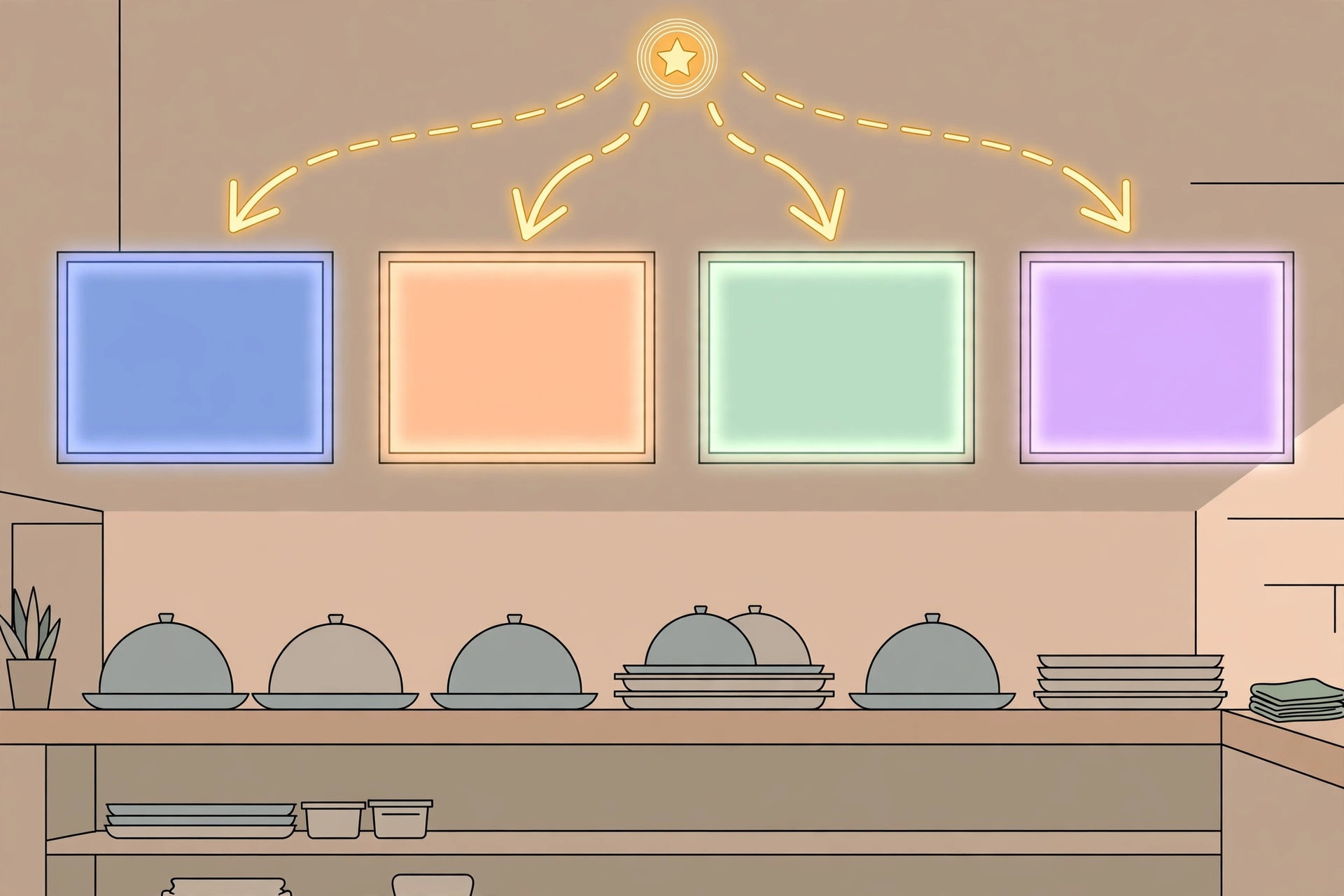
When a steak lands on the salad screen, the instinct is to blame the screen. In LS Hospitality's Kitchen Display System, the screen is almost never the decision-maker. Routing is decided in two separate layers, set up in two different places: items are routed to production sections as company-based setup, and production sections are mapped to display stations as restaurant-based setup. Most routing bugs are one of those two layers disagreeing with the other, and they are debugged in different places, which is why they feel mysterious. This guide walks the model end to end: the layers, the moment an order fires, and how course timing is supposed to bring a table's dishes together.
The routing model in one picture: sections first, screens second
The documented KDS process runs like this. An order is taken at the table and sent to the Kitchen Server, all order lines, by menu types, or after an item is added. The system creates a KOT (kitchen order ticket) with synchronized production timing. The Kitchen Server then sends the KOT to display stations: when depends on production time and setup, and to which station depends on routing and mapping information. Kitchen staff bump orders on the stations, a single order line, or the whole KOT (the chit), and can mark orders as Started. The Kitchen Server returns the updates to the POS and updates the status tables, so the front of house sees the same state the kitchen sees. If more items are added to the order, the process repeats with a new KOT.
Notice the two dependencies hiding in that flow: routing decides which production section an item belongs to, and mapping decides which physical screen shows that section in this restaurant. An item can be routed perfectly and still appear on the wrong screen because the mapping is wrong, or routed wrongly and appear “correctly” on a screen that should never have received it.
Layer 1, route items to production sections (company setup)
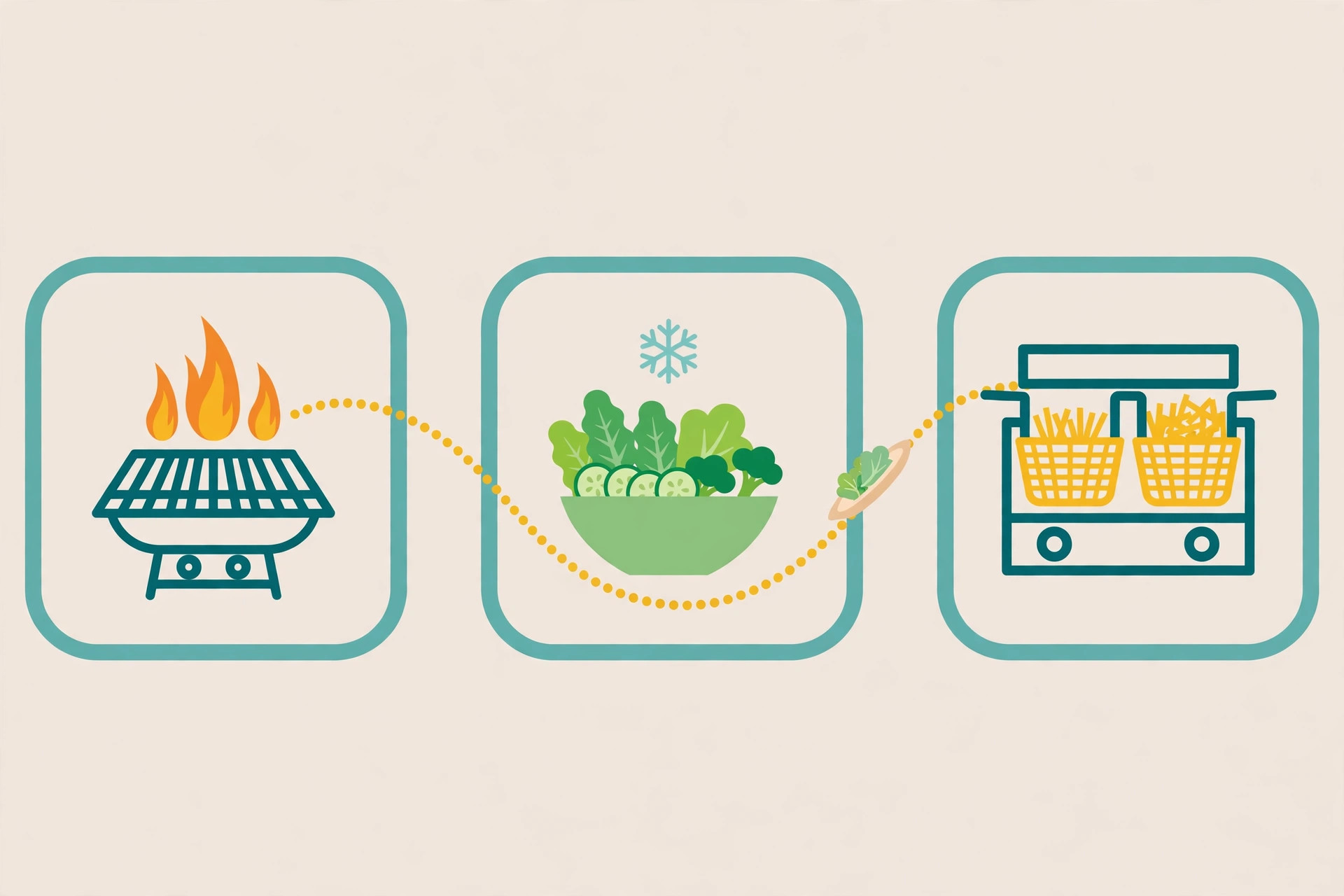
Production sections are the kitchen's work areas: grill, fryer, cold, dessert, whatever divisions the kitchen actually cooks in. In the company-based setup you define the production sections, then route to them by Product Groups, Categories, Special Groups, All Items, and/or individual Hospitality Items and Recipes. One item or group can route to one section or to many, a dish finished in two places can legitimately appear in both.
The vendor's own setup examples give the shape of it: sections named PICKUP, GRILL, FRYER-OVEN, and SALAD, with items carrying a production time each. Grilled Chicken 11, Buffalo Wings 5, Tenderloin 4, T-Bone 8. Keep those production times in mind; they are not decoration. They drive the synchronized timing in layer 3, and a section map built without them produces a kitchen where everything fires at once and finishes whenever it finishes.
Layer 2, map sections to display stations (restaurant setup)
Display stations are the screens (and printers) in a specific restaurant. In the documented example setup, four stations. COLD-PS, DESSERT-PS, FRYER-PS, GRILL-PS, are Preparation Stations, PICKUP-EX is an Expeditor, and BAR-WP is a Windows Printer. The mapping connects production sections to these stations, and it is restaurant-based setup: each restaurant can have its own mapping, or the same setup can be shared across restaurants. Mapping factors include Restaurant Number, Load Configuration, Sales Types, Terminals, and Terminal Groups, and the restaurant number can be left blank to define a more general mapping that specific mappings then refine.
Two prerequisites from the examples are easy to miss: the restaurant must have Kitchen Prod. System in Use set to Yes, and in a simple setup the expeditor is where the order comes together, preparation stations bump their lines, and the whole KOT is bumped at the expeditor when the order is complete.
When orders fire: on paying, on item added, or by menu type
| Send method | Trigger | Order on the screens | Watch out for |
|---|---|---|---|
| On paying | Items are sent to KDS when the order is paid (Total / tender) | One order is one KOT; items ordered by production time | The kitchen sees nothing until payment, the quick-service pattern |
| On item added | Each item displays immediately when added to the order | Same KOT, items in chronological order | Not to be used when item routing exists for printers (current version) |
| By menu type | Order lines sent grouped by menu type (courses) | Grouped by course | Menu Type Usage cannot be a manual/automatic KDS menu-type mode when On Item Added is selected |
The send method is a per-hospitality-type setting: in Hospitality Types, the KDS FastTab's KDS Display/Printing field. Selecting On Item Added makes the system set three companions automatically, Add Item to Same KOT on order modification, Confirm send to KDS = No, and Send All Items on POS exit/posting. The documented trap: if one hospitality type in a restaurant sends on item added (chronological order on the screens) and another creates a new KOT on modification (production-time order), the same display stations end up showing a mixture of both orderings, unless the types use different display stations and routing. Mixed ordering on one screen reads as chaos to the kitchen even when every individual setting is “correct.”
Course timing: production time and synchronized KOTs
The reason production time exists: a T-Bone at 8 and wings at 5 should not start together if they are meant to arrive together. The KOT is created with synchronized production timing, and when the Kitchen Server releases items to stations depends on production time and setup, longer items surface earlier so dishes with different cooking times are ready at the same time. On the screens, courses stay legible: orders are organized by course and priority, dine-in, drive-thru, takeaway, and delivery orders are distinguished, and allergies, modifiers, and special requests display with the order rather than on a separate slip someone has to carry. Servers, meanwhile, check order status from the POS, the status the kitchen's bumps write back, instead of walking to the pass to ask.
Printers instead of screens
Displays are not mandatory. LS Central can also route kitchen orders to printers instead of digital displays, with different printer stations for different preparation areas, the BAR-WP Windows Printer in the example setup is exactly that pattern living alongside screens in the same restaurant. Choose per area, not per ideology: the routing and mapping layers treat a printer station as a station. The one hard constraint already noted: in the current version, the On Item Added send method should not be used when item routing exists for printers, if the bar printer matters, pick a different send method for that hospitality type.
Routing mistakes that surface at service
- Item on the wrong screen, every time: a layer-1 problem. The item (or its category/group) is routed to the wrong production section. Fix the routing, not the screen.
- Item on the right screen in one restaurant, wrong screen in another: a layer-2 problem. The mapping differs per restaurant, check the restaurant-specific mapping and the blank-restaurant general mapping it falls back to.
- Two orderings mixed on one screen: two hospitality types with different send methods sharing stations. Separate their stations or align the send methods.
- Everything fires at once, finishes scattered: production times missing or uniform. Synchronized timing cannot synchronize numbers it was never given.
- Nothing appears at the bar printer: check the send method before the printer. On Item Added is documented as incompatible with printer item routing in the current version.
FAQ
What is the difference between a production section and a display station?
A production section is a logical work area defined at company level, items are routed to
sections. A display station is a physical screen or printer in a restaurant, sections are
mapped to stations. Routing answers “who cooks this”; mapping answers
“where does that work appear here.”
Can one item go to two stations?
Yes, by design: an item or group can be routed to one or many production sections, and each
section maps onward to its station. A dish that starts on the grill and finishes at the
pass is the ordinary case, not an exception.
Should orders send on paying or on item added?
Decide per hospitality type. On paying suits quick service, where the order is complete
before the kitchen starts. On item added suits table service, where courses build over
time, subject to the printer-routing constraint and to keeping ordering consistent across
the types that share your screens.