LS Central hospitality vs retail: how the two modes differ and what it changes at the till
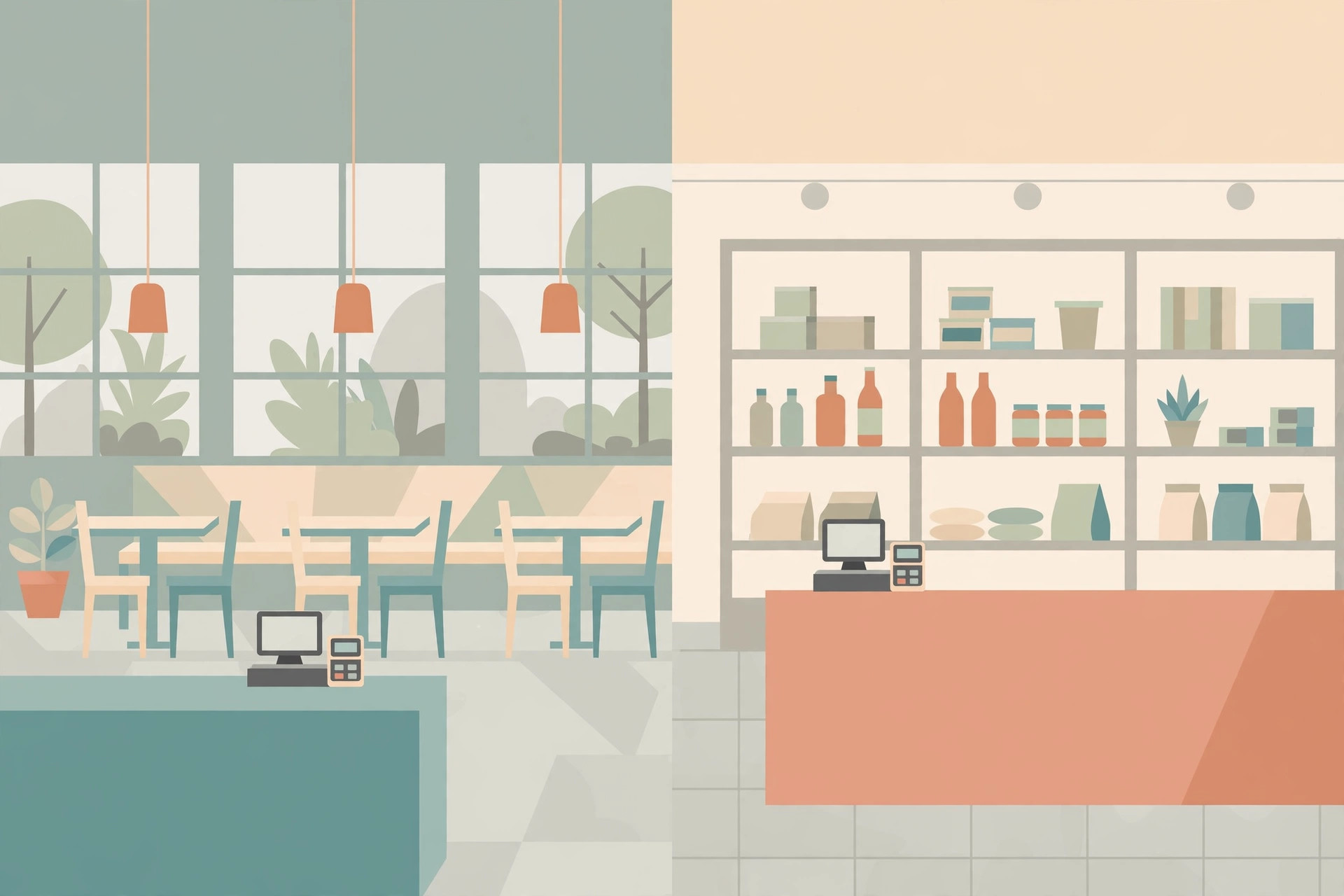
Hospitality and retail in LS Central are not two separate products bolted together. LS Central offers industry-specific configuration versions of the same core solution — including versions for retail and for hospitality — and those versions share the same backbone while being tailored with specialized features and workflows. That single fact changes how the choice should be made: the question is not which system to buy, but which documented behaviours a given till needs to open with.
This guide states only differences that LS Retail's own documentation states. Where the documentation describes a hospitality capability, the article names it. Where it does not document a retail-versus-hospitality contrast, the article does not invent one. Menus, field names, and examples can vary by version and demo data, so check the setup against the version in use before changing a live store.
Two modes, one backbone
Because the versions share a backbone, much of the setup machinery is common to both. POS profiles are the clearest example. LS Retail documents profiles that define how a POS looks and behaves, and those profiles are linked to stores, terminals, and retail users in both modes. A hospitality till and a retail till therefore differ less in how they are wired up than in which extra objects the hospitality side brings into the transaction: hospitality types, dining tables, order statuses, and a kitchen flow.
That distinction matters during implementation. Time spent arguing about the platform is usually wasted; time spent deciding, terminal by terminal, whether the operator needs to manage a dining table or split a bill between guests is not. Those two questions — tables and guests — are where the documented hospitality system begins.
What hospitality adds, per the documentation
LS Retail describes the hospitality system as designed to manage restaurants in the form of fine dining, casual dining, catering, cafeterias, and takeouts. The documented work is specific: taking orders, keeping track of order statuses, transferring orders between dining tables and sections, splitting the bill between guests, and managing tips and service charge. None of that is a generic point-of-sale claim. Each item names an object or an action that has to exist in setup before a cashier can use it.
- Orders with statuses. A hospitality order lives beyond the moment it is entered, and its status is tracked while it progresses.
- Dining tables and sections. Orders can be transferred between dining tables and sections, so the table is part of the transaction, not a note on it.
- Split bills. The bill can be split between guests, which changes how payment is presented at the end of the sale.
- Tips and service charge. Both are managed as part of the hospitality flow, rather than handled as an after-the-fact adjustment.
Hospitality also brings a kitchen system. The Kitchen Display System, or KDS, is described by LS Retail as an advanced kitchen production system designed for use in casual dining and fine dining. While orders are being processed in the kitchen, the Hospitality POS is updated with process information. Display stations are set for the kitchen, display stations can also be printers, and a different configuration can be activated depending on the restaurant's or hospitality type's load. Underneath, the Kitchen service constantly pulls data from the KDS Web Service to send information between the POS and the Kitchen service. A retail till has no kitchen to update; a dining till that cannot show kitchen progress is missing a documented part of the hospitality flow.
Comparison: documented hospitality behaviour vs a plain retail till
| Question at the till | Hospitality mode, as documented | Retail profile without hospitality |
|---|---|---|
| Does the sale belong to a table? | Orders can be transferred between dining tables and sections. | No dining-table object is documented for the plain retail flow in this comparison. |
| Do several guests pay separately? | The bill can be split between guests. | Payment is a tender question only; see the tender types guide. |
| Does a kitchen produce the order? | KDS tracks production and the Hospitality POS is updated with process information. | No kitchen display flow applies. |
| Are tips and service charge part of the sale? | Tips and service charge are managed in the hospitality system. | Not documented as part of the plain retail flow here. |
| Which types open at logon? | Hospitality types appear in the Startup POS, limited by the terminal's Sales Type Filter. | The terminal opens with its assigned POS profiles. |
Read the table narrowly. It does not claim that a retail operation can never handle food, or that a hospitality operation cannot sell goods. It records what the documentation attaches to the hospitality system, so a decision can be made on documented behaviour instead of on sales language.
Profiles: the shared mechanism underneath
Both modes sit on POS profiles. LS Retail documents, among others, a Style Profile and a Hardware Profile. The Style Profile defines the look of the POS — the colors and fonts for all areas, such as the style and color of a button, the font on a button, and the background color. The Hardware Profile holds the setup for the POS hardware in use, including which hardware is in use and how it is set up. Profiles can be connected to stores and terminals, and the Interface, Menu, and Style Profiles can also be connected to staff cards and to the Store Link Lines on the staff card.
Demo data underlines that this is a shared mechanism: LS Central's Demo Data company has several profiles of each type to give examples of different store and layout types, and some of those profiles are set up and used for Hospitality. In other words, hospitality is expressed through profiles and hospitality objects on the common platform, not through a separate till program.
Which profile wins matters in mixed operations. When the POS loads, it looks for the active profile in a fixed order: first the profile value in Store Links on the staff card, secondly the value on the staff card, thirdly the value on the terminal card, and finally the value on the store card. When no profile value is found, the system uses the ##DEFAULT profile value. Whenever the POS finds a value, that value becomes active and the search stops. A staff-level assignment can therefore override the terminal a person happens to be standing at — a useful feature, and a common source of "the wrong screen opened" reports when it is forgotten.
Hospitality types and the Sales Type Filter
Inside hospitality, the hospitality type is the unit that decides what a terminal shows. A POS terminal in a hospitality restaurant shows all the hospitality types in the restaurant unless it has a Sales Type Filter that limits the types it shows. Run with a filter such as RESTAURANT|BAR, and only those hospitality types are displayed. The types appear in a menu at the top of the Startup POS, and they can also appear in a pop-up window when staff log on.
Selection at logon follows its own logic. Staff can have a default sales type specified per terminal or per restaurant, and a terminal can have its own default. If no applicable default applies, the system selects the hospitality type with the lowest sequence number. That fallback is worth knowing before go-live: the type that opens by default may be decided by sequence, not by intention, unless defaults are set deliberately.
Dining areas add one more layer. The Dining Area Profile contains the settings for a dining area in the restaurant, including the dining table setup with layouts and settings for table button appearance. It is set up depending on which layout view it is used for, whether guests are requested, and whether seating capacity is in use. A dining area profile is assigned to a hospitality type that manages dining tables — the type, the area, and the tables form one chain, and a break in any link shows up at the till as a missing or wrong table view.
Decision framework: which mode for which till
- Does the operator manage dining tables or sections? If yes, hospitality applies: order transfer between tables and dining area profiles are hospitality objects.
- Does the bill need to split between guests, or carry managed tips and service charge? If yes, plan for hospitality behaviour at that terminal.
- Does a kitchen need production visibility? If yes, include the KDS in scope: display stations, possible printer stations, and a load-dependent configuration.
- Is the answer to all three no? A retail profile on the shared backbone is the simpler documented fit; do not add hospitality objects that nobody will use.
- Is the operation mixed? Decide per terminal, then use the Sales Type Filter and profile assignments to make each terminal open with only the types it should show.
The framework deliberately asks about behaviour, not about the business's marketing label. A café counter with no tables, no split bills, and no kitchen display may need less hospitality machinery than its name suggests, while a store with a seated food area may need hospitality on one terminal and a plain retail profile on the next.
Setup procedure: configure a hospitality terminal alongside a retail terminal
- Confirm the backbone first. Verify the store, terminal, and staff records exist, since profiles link to stores, terminals, and staff.
- Assign the shared profiles. Set the Style and Hardware Profiles the terminal should use, remembering the lookup order: staff Store Links, staff card, terminal card, then store card, then ##DEFAULT.
- Create or check the hospitality types for the restaurant, and decide which types each terminal should show.
- Set the Sales Type Filter on the hospitality terminal, using a filter such as RESTAURANT|BAR when only those types should appear; leave the retail terminal without hospitality types.
- Set up the Dining Area Profile by going to LS Hospitality, Point of Sales, POS, Dining Area Profiles, inserting a new profile with an ID and description — applying a template if one fits — and assigning it to a hospitality type that manages dining tables.
- If a kitchen is in scope, set up the KDS display stations and decide whether any station also acts as a printer, and which configuration applies under load.
- Set logon defaults deliberately: a default sales type for staff or terminal where it matters, so the lowest-sequence fallback does not choose by accident.
What success looks like
Log on at the hospitality terminal: the Startup POS shows only the hospitality types allowed by its Sales Type Filter, in the menu at the top or in the logon pop-up. Open a type that manages dining tables and the dining area layout appears with its table buttons. Enter an order, transfer it to another table, and confirm the order status is tracked. Send the order toward the kitchen and confirm the Hospitality POS reflects kitchen process information. Close with a bill split between guests, with tips and service charge handled in the flow. Then log on at the retail terminal and confirm no hospitality types or table view appear there. If the retail terminal opens a hospitality screen, trace the profile and filter assignments in lookup order before changing anything else.
Disclaimer: profile IDs, menu names, and demo examples differ between LS Central versions and implementations. Verify field names and paths against the documentation for the version in use, and test profile changes in a sandbox before applying them to a live store.
FAQ
Is hospitality a separate product from retail? No, on the documented evidence used here: LS Central offers industry-specific configuration versions of the same core solution that share the same backbone and are tailored with specialized features and workflows.
What is the smallest documented hospitality difference? The hospitality type itself: a terminal shows the restaurant's hospitality types, limited by its Sales Type Filter, and a type can carry a dining area profile and KDS behaviour.
Why did a terminal open with the wrong profile? Work the documented lookup order — staff Store Links, staff card, terminal card, store card, ##DEFAULT — and find the first value the POS would have found, because the search stops at the first value.
IndexBack to all guides →