 BC LS Retail Tips
Hospitality types are sales types in LS Central: price, VAT, and stock location follow the type
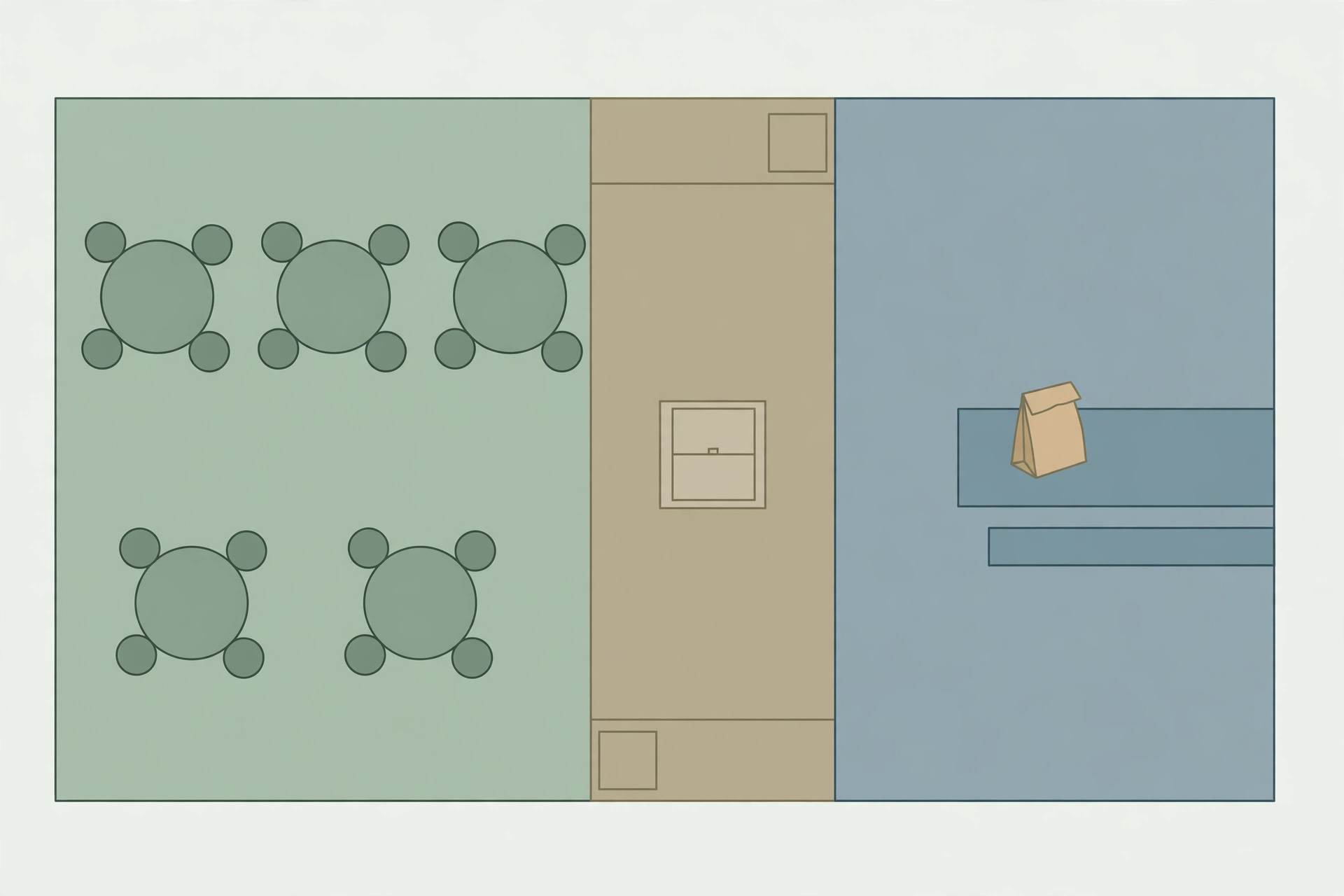
A hospitality type in LS Central is a sales type wearing a restaurant name. That is the documented definition, and it carries the whole topic: hospitality types are the sales types in use in a restaurant, and sales types can control prices, VAT handling, item stock locations, and dimensions. Choose the wrong type when an order opens and the screen is not the only thing that changes. The price, the tax treatment, and the location the stock leaves from all follow the type.
What the type controls, in order of consequence
| Controlled by the sales type | What goes wrong when the type is wrong |
|---|---|
| Prices | The guest is charged the price set for a different way of eating, such as a takeaway price on a dine-in order |
| VAT handling | The transaction carries the tax treatment of the wrong sales type into the statement |
| Item stock locations | Ingredients deplete from a location that never held them, and the real location keeps stock it no longer has |
| Dimensions (Project, Department) | Revenue lands in the wrong reporting slice and store comparisons quietly skew |
Against that list, the visible parts of the type, its layout view and where the POS lands after posting, are the minor half of the setup. Yet the visible half is where setup time usually goes, because it is what the next screen shows. The documented setup sequence is worth following in its own order: pick an existing sales type or create one that represents the hospitality type, insert the type by selecting the restaurant and the sales type, and apply a template if one fits. Templates exist and save real time, but a template imports the template author's decisions about everything in the table above, not just the layout.
Service type is the decision that sets the defaults
If no template is used, the Service Type is the load-bearing choice: just by selecting it, the program selects appropriate options for Layout View and for After Transaction Posted, whether the POS returns to the Startup POS or stays in the Sales POS. Both defaults should be double-checked rather than accepted, because appropriate in the demo data and appropriate in a working dining room are different judgements. The remaining decisions sit in a short documented list:
- Guest Handling: how guests are handled for the type.
- Order Guest Marking: whether a guest number or a seat number is specified at order taking.
- Order ID: whether to use a queue counter for the order ID or manual input by sales type.
- Whether the Sales POS should open directly on Logon instead of the Startup POS.
Two service shapes add requirements of their own. A dining table service needs a dining area profile and a service flow. Any type whose orders are sent to the kitchen also needs a service flow, with display and printing options that depend on whether the type uses menu types such as starters and main courses, quick service, or dining table service. When every hospitality type for a restaurant is set up, the documentation points at three finishing moves that are easy to skip: check whether the setup is correct, set the order of the hospitality types within the restaurant, and decide how the types appear in the Startup POS when a terminal for the restaurant runs. Order matters at the till, because the first type on the screen is the one a rushed cashier selects.
One type per takeaway sales type, and the terminals that prove it
Takeaway is where the type stops being a restaurant nicety and becomes integration wiring. At least one sales type must represent takeaway, and multiple takeaway sales types per restaurant are allowed, for example one for web orders and one for restaurant orders. Each POS Terminal specifies which sales type it uses to create Food and Beverage orders, which is also the lever for giving specific discounts depending on the sales type of the order. For every takeaway sales type the restaurant uses, a hospitality type must exist with that sales type selected and Takeaway Service as the Service Type; the program then selects Kot List as the Layout View, the view used by terminals showing the kitchen order ticket list created by the FAB orders.
The terminal side has three distinct roles, and confusing them is the standard takeaway failure. The terminal that takes takeaway orders in the restaurant uses the #FAB-TD interface profile, carries all takeaway sales types in its Sales Type Filter, and names the sales type it creates FAB orders with in its F&B Takeaway Sales Type field; in the demo data that terminal is P0119, Takeaway Host. The kitchen terminal that handles the KOT list selects all the sales types it should show in its Sales Type Filter, and those sales types should carry the KOT List layout view; demo terminal P0113, Counter, is the example. The eCommerce service needs one dedicated POS terminal of its own, P0117, Web Store in the demo data, because transactions made by the eCommerce service are marked with that terminal. Two setup switches complete the path: the Hospitality Module must be registered, or default data inserted with the Insert process run for Hospitality commands, and on the Restaurant card the Use F&B Order Structure check box makes the system create FAB orders instead of Delivery orders for eCommerce orders. Even the QR code route respects the type: when eCommerce takes QR code orders, the sales type is included in the QR code.
The price trap: nothing updates after the POS starts
One documented behaviour deserves its own warning, because it converts a correct price change into an apparent till fault. Prices are not updated after the POS starts. Prices can be specific for a sales type, and the documentation's own example is Happy Hour: to run Happy Hour prices from 17:00 to 19:00, set different prices for the Happy Hour sales type and schedule the Hierarchy for Happy Hour to be valid from 5 to 7 p.m. with high priority. Since all hierarchies are loaded at the start, the Happy Hour hierarchy carries the happy hour prices when the POS starts. The same loading rule governs the kiosk flow, where the system picks the hierarchy that is valid for that date and time and sales type when the customer selects the sales type. The operational reading is blunt: a price or hierarchy edit made at midday reaches terminals that restart, and does not reach terminals that keep running. A store that changes a takeaway price at lunch and checks it on a terminal started at breakfast will conclude the change failed. It did not fail; it was never loaded.
Verification procedure: type by type
- List the restaurant's hospitality types against its sales types. Every sales type in use should have a hospitality type that selects it, and every hospitality type should name a sales type the house still trades under.
- Check the four controls per type. For each type, confirm the intended price behaviour, VAT handling, item stock location, and dimensions. A type copied from another restaurant fails here first.
- Revisit the Service Type defaults. Confirm Layout View and After Transaction Posted are the values the room needs, not only the values the selection proposed.
- Walk the takeaway wiring. Confirm a hospitality type exists per takeaway sales type with Takeaway Service selected, the order-taking terminal carries the sales types in its Sales Type Filter and the right F&B Takeaway Sales Type, the kitchen terminal filters the types it displays, and the eCommerce terminal is dedicated.
- Restart one terminal and retest a price. Change a sales-type price, restart the POS, and confirm the new price appears; then confirm a terminal that was not restarted still shows the old price, proving the loading rule rather than a replication fault.
- Check type order in the Startup POS. Confirm the types appear in the order the service actually uses, with the busiest type easiest to reach.
What success looks like: every way of eating the restaurant sells has exactly one type, each type posts its own prices, VAT treatment, stock location, and dimensions, takeaway orders arrive on the KOT list from every channel that sells them, and a price change plus a terminal restart produces the new price on every till.
General information only. Hospitality type setup is documented in the LS Central 11.0 help tree, the takeaway process in the 21.0 tree, and kiosk price loading in the 22.0 tree; confirm the fields and demo identifiers in your own version before changing live setup.
— Dex Carter, Tech Writer