 BC LS Retail Tips
Drop Shipments in Business Central: When the Vendor Ships Direct to Your Customer
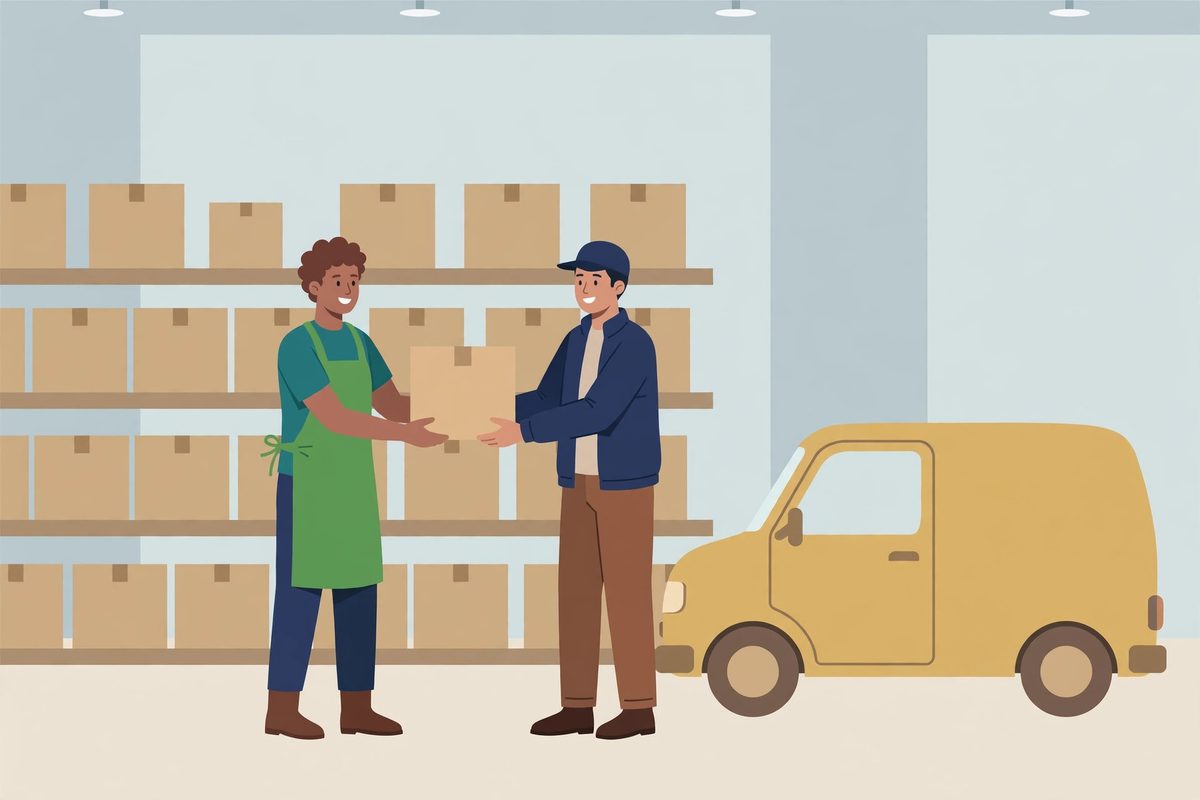
A drop shipment is the shipment of items from one of your vendors directly to one of your customer. The store takes the order, Business Central links a sales order to a purchase order, and the goods never pass through the stockroom. For a retailer, that is the whole appeal and the whole risk in one sentence: the sale is yours, the delivery is the vendor's, and the only proof that the two belong together is the link between the documents. Get the link right at creation and the flow is short. Skip it, and staff end up chasing a delivery that the system believes never happened.
Three ways to fulfil an order the shelf cannot
Most awkward retail orders are one of three shapes, and each shape has a different correct tool. The comparison below is the decision in full; the rest of this guide is the mechanics of the first row.
| Route | Who ships to the customer | When it fits | The catch |
|---|---|---|---|
| Drop shipment | The vendor, direct to the customer | An item the store does not regularly carry, sold to a named customer | The sales and purchase orders must be linked when they are created |
| Special order | The store, after the vendor ships to the warehouse | The goods must be seen, checked, or combined with other items before they go out | Slower, and the item occupies receiving and storage on the way through |
| Stock sale | The store, from its own shelves | Normal ranged stock | Ties up shelf space and working capital before anyone asks for the item |
The special order exists for the cases where direct shipping goes wrong in practice. The vendor ships the item to your warehouse, and the store ships it on to the customer, either independently or together with other items on another order. That extra leg is not waste when the item needs inspection, configuration, or a showroom handover. It is waste when the item is a sealed box the customer could have received a week earlier.
Set it up once: purchasing codes and the fields staff cannot see
A purchasing code tells the system which purchasing activity a sales line needs. A code is marked as a drop shipment or as a special order on the Purchasing Codes page, and only one of the two can be selected for any given code. Set up a small, readable set of codes before the first live order, because the code chosen on the line is what drives everything downstream.
- Search for Purchasing Codes and create one code for drop shipment and, if the store uses them, one for special orders.
- On each code, select the Drop Shipment field or the Special Order field, never both.
- On the sales order lines, reveal the two fields the flow depends on. By default, the Drop Shipment checkbox and the Purchasing Code field are not available on the lines; they are added by personalising the section of the page that contains the lines. Do this for every role that raises sales orders, not just the person who tested it.
- Check the item setup for lines that will be bought this way. Partner guidance for this flow treats two item card fields as mandatory: the replenishment system set to purchase, and a designated vendor on the Replenishment FastTab.
What success looks like: a salesperson opening a new sales order can see the Purchasing Code field on the lines without asking anyone where it went, and every code on the list is unambiguously one route or the other.
Run one drop shipment, end to end
- Create the sales order for the item in the normal way, with the customer identified.
- On the sales order line, select the Drop Shipment checkbox, or select a purchasing code that has the Drop Shipment field selected.
- Create a purchase order, and leave the lines empty. The lines come from the sales order, not from typing.
- On the purchase order, set the Ship-to field to Customer Address, and select the customer in the Customer field.
- Choose the Drop Shipments action, then Get Sales Order, and select the sales order prepared in the first steps. The line information from the sales order is inserted on the purchase order lines.
- Send the order to the vendor. If the vendor supplies extra information, such as a tracking number, record it as a comment on the purchase order line: choose Comment in the Type field and enter the information in the Description field.
- When several drop shipments are waiting, skip the one by one route. In the requisition worksheet, choose Drop Shipments and Get Sales Order to gather all outstanding drop shipments, set the vendor on the lines, and use Carry Out Action Message to convert them to purchase orders.
At any point, the linked purchase order can be checked from the sales side: select the sales order line, choose Order, then Drop Shipment, then Purchase Order. If that path returns nothing, the link was never made, and the order is two unrelated documents pretending to be a fulfilment plan.
Post in the right order, and do not forget the vendor invoice
Posting is where a tidy drop shipment quietly breaks. After the vendor ships the items, the sales order is posted as shipped: set Qty. to Ship to the full quantity or a partial quantity, then post with Ship to invoice later or Ship and Invoice to invoice immediately. The linked documents move together; posting the shipment on the sales order is what records the corresponding receipt on the purchase order.
Two constraints govern the sequence. First, the purchase order can only be posted with the Receive option until the sales order has been invoiced, so an office routine that tries to fully process the purchase side first will hit a wall it created itself. Second, the procedure ends with a plain reminder that is easy to skip at month end: post the purchase order invoice. A drop shipment where the customer has been invoiced and the vendor invoice never lands is a margin figure that flatters the store until the bill arrives by email.
One more trap deserves a name. The standard link is established during creation. Forum answers on linking a purchase order to a sales order after both documents already exist describe workarounds, deleting the purchase lines and pulling the sales order in again, or adding the link fields through an extension. Both are repairs. The operating rule is cheaper: if the link was missed, fix it before the order goes to the vendor, not after the goods are on a truck.
Decision framework: should this line be drop shipped?
- Drop ship it when the item is not regular stock, the customer is named, the vendor ships reliably to end customers, and nothing about the item needs the store's hands on it first.
- Make it a special order when the item must be inspected, configured, installed, or combined with other goods, or when the vendor will only deliver to trade addresses. Note the reservation limit that comes with special orders: the flow cannot be used if the item is already reserved, and the Reserve field on the item card must not be set to Always for items sold this way.
- Stock it instead when the same request keeps repeating. A line that is drop shipped every week has stopped being an exception and become an unstocked range decision, with delivery times to match.
- Say no to the route when the customer needs a guaranteed date the vendor will not commit to in writing. A drop shipment moves the delivery promise outside the store's control while leaving the promise itself firmly on the store's receipt.
What success looks like: every drop shipped line can be traced from sales order to linked purchase order in two clicks, the customer invoice and the vendor invoice both exist, and no one in the store can describe the delivery status better than the documents can.
, Dex Carter, Tech Writer