 BC LS Retail Tips
Dining tables and covers in LS Hospitality: layouts, seating, and the table status flow
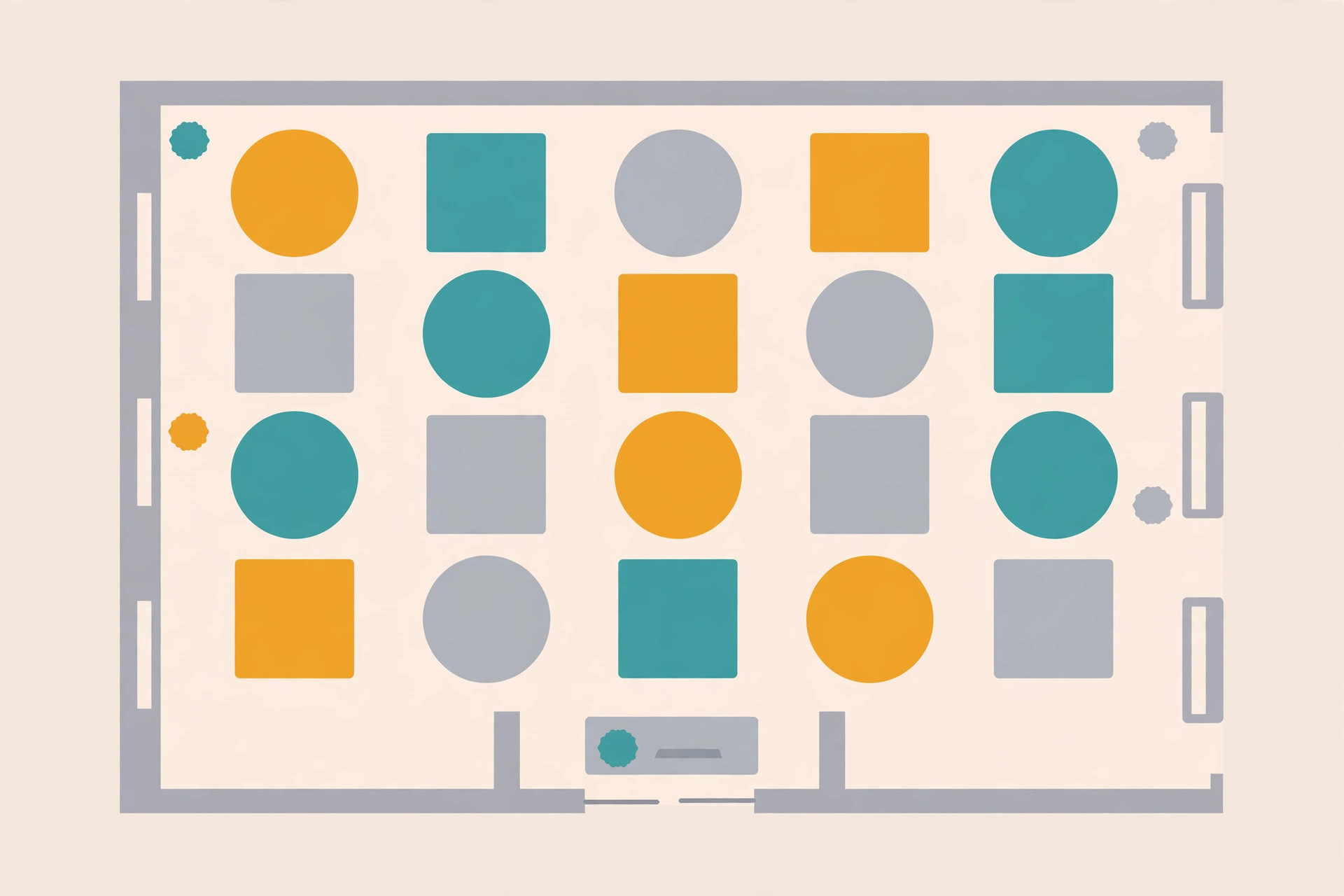
The dining table screen is the restaurant's control panel: it says which tables are free, which are mid-meal, which are waiting to be cleared, and how many guests, covers, are sitting at each. In LS Hospitality that screen is not one thing. The same dining area can be drawn as a graphical floor plan on one terminal, a button grid on another, and a plain list on a waiter's tablet, and the covers count that drives kitchen and reporting numbers is captured (or not) by a handful of settings spread across the hospitality type and the dining area. This guide connects the three pieces: the view, the setup underneath it, and the seating flow that keeps covers honest.
Three ways to see the same tables
| View | How tables appear | Status shown as | Fits |
|---|---|---|---|
| Graphical layout | Tables placed in the dining area with shape and coordinates; designed and adjusted by drag/drop and joining | Colour, symbol and/or text on each table | The host stand, spatial decisions: which free table suits this party |
| Button grid | Each table is a button in a grid of rows and columns | Colour, symbol and/or text on each button | Fixed terminals where staff know the room by number |
| Dining table list | Table number selected from a list, or entered directly to seat and order quickly | Text, with filters: free tables, seated tables, tables with alert, the waiter's tables | Waiter tablets, speed over geography |
The documented pattern for a large restaurant is exactly that mix: the POS terminal used by the host manager displays the graphical layout, while the tablet POS terminals used by waiters display the tables by list, the waiter knows his tables and seats guests just by entering the table number. Which view a terminal gets is an interface-profile decision: the startup controller #HOSP-MULTIVIEW shows the layout, while #HOSP-TABLELIST shows the list. In every view, selecting a table opens a menu with the actions possible for that table's current status.
Set up the dining area once: tables, sections, layouts, plans
A dining area contains the dining tables, the dining area layouts, the dining area sections, and the dining area plans, plus the settings for table button appearance, and one dining area can be assigned to more than one hospitality type, so concepts sharing a room (the documentation's example is a juice bar and a sandwich deli) share the same set of tables. Each layout specifies, per table: the description on the button, the graphical placement and size, the dining area section placement, and the table's availability. Combined (joined) tables are set up in the layout too.
Layouts are plural for a reason: you can have one layout for weekends, another for weekdays, another for the dinner period. If the dining area plan schedules when each layout is in use, the program switches between layouts automatically; if it does not, staff switch manually within the POS. A layout designed for Saturday's joined banquet tables should never be Tuesday lunch's problem, the plan is what keeps the two apart.
Seating: where covers come from
Covers are captured, or lost, at the seating moment, and what gets asked is controlled by the hospitality type. Two settings decide it:
- Guest Handling, Request No. of Guests (No. Mandatory) makes entering the number of guests mandatory at seating; (No. Optional) asks but allows skipping; None never asks.
- Guest Registration, Mandatory Guest ID Requested at Seating or Optional Guest ID Requested at Seating controls whether an ID or name for the guests is captured; None skips it.
One pairing catches people out: the information on the dining table buttons takes the guest count into consideration only when the Request No. of Guests check box on the Dining Area Card's General FastTab is selected. Set mandatory guest handling on the hospitality type but leave that box clear on the dining area, and the seating prompt and the table buttons disagree about whether covers exist. The panel that asks appears on seating (or on opening the POS on a free table), which is why a mandatory setting feels inconsistent when a table was opened without being seated first.
Covers after seating: changes, per-guest lines, and why the count matters
Parties change size. The COVERS command opens a dialog to enter covers (the number of guests) for an order, available from the dining table pop-up menus and the Sales POS function menu, and the Occupied table's pop-up menu carries a Change Cover command when number of guests is requested. Below the table level, the GUEST command sets the guest or seat number so item lines are assigned to a specific guest; GUEST_CHG reassigns a line to another seat, and GUEST_TGL toggles between seeing all guests' lines and just the current guest's. That per-guest assignment is what later makes per-guest splitting and kitchen clarity possible, covers say how many; guest lines say who had what.
Why insist on the count at all? Covers are the denominator of the dining room: they ride on the order (the kitchen's chit content can show the number of covers), they feed per-cover reporting, and they are the difference between “table 12 spent $80” and “four guests spent $20 each.” A count captured optionally is a count captured when the room is quiet and skipped when it is busy, precisely backwards.
The table status flow, end to end
Read the table buttons as a flow, not a snapshot:
- Free. The table is available; its pop-up menu offers seating actions, shaped by whether the table becomes occupied when guests are seated or on ordering.
- Seated. Guests are placed, with the guest count and any guest ID captured per the seating settings. If the Sales POS is opened and closed with no items, the table's state follows the service flow: it stays seated if it was seated before opening, or becomes seated on closing with the entered guest count when the flow's Table Becomes Occupied is When Guests are Seated, and stays free, with zero guests, when it is On Ordering.
- Occupied. An order exists; the pop-up menu is the order-working menu, including Change Cover when guest counts are requested.
- To Be Cleaned. After clearing, the table shows as to be cleaned, and a table in this status is not open for seating nor for a new transaction. It returns to the pool when it becomes available, which is a status step someone owns, not an automatic timeout.
What success looks like: every table in the room shows a status the host can act on, seated tables carry a guest count, and no table sits in To Be Cleaned while the host stand turns guests away.
Choosing views per terminal: a decision framework
- If the terminal's job is seating decisions (host stand, manager station), then give it the graphical layout, the decision is spatial, and shape, position, and joined tables are the information.
- If the terminal's job is order entry by staff who know the room, then the list with its filters (free, seated, alert, my tables) is faster than any picture; waiters enter a number and work.
- If covers feed reporting or kitchen chits, then make Guest Handling mandatory on the hospitality type and select Request No. of Guests on the dining area, one without the other silently drops the count.
- If layouts change by daypart or day of week, then schedule them in the dining area plan instead of relying on manual switching; an unscheduled layout change is a change that happens only when someone remembers.
FAQ
What are covers?
Covers are the number of guests on an order or at a table. They are entered at seating (per
the hospitality type's Guest Handling setting), adjusted with the COVERS command, and shown
on the order, including, in the Web KDS, the chit's number-of-guests field.
Why do my table buttons not show guest counts?
Check the pairing: the hospitality type must request the number of guests, and the Dining
Area Card's Request No. of Guests check box must be selected, the button display only
takes guest numbers into consideration when that box is set.
Can two concepts share one dining area?
Yes. One dining area can be assigned to more than one hospitality type, so two concepts
selling to the same set of tables share the tables, layouts, and sections while keeping
their own service behaviour.