 BC LS Retail Tips
The Database Connection Drops: On-Prem POS and SQL Connectivity Triage
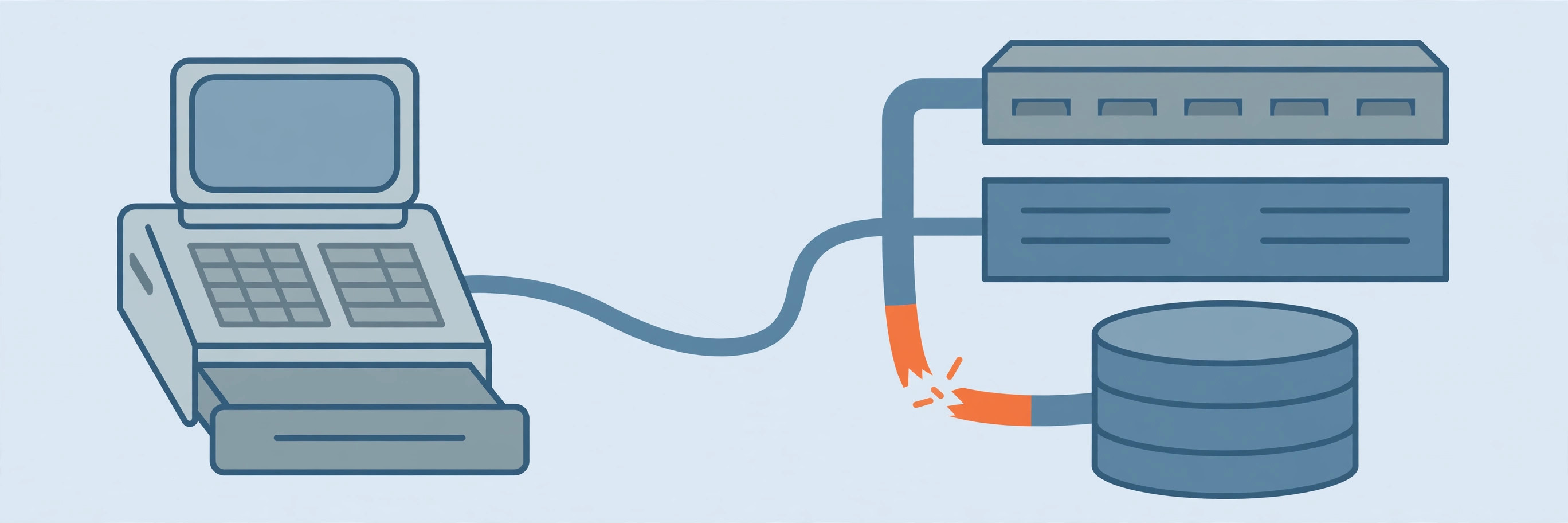
'The database connection dropped' sounds like one fault. On an on-premises setup it is at least four, stacked: the network path, SQL Server itself, the Business Central service tier, and the connection settings the POS and related services actually use. Each layer produces its own version of 'connection lost,' and each has a different fix. Restarting things at random sometimes clears the symptom, and destroys the evidence of which layer failed.
The misconception: 'the network is down', four layers, four different drops
The misconception is treating every drop as a network outage. A network fault is only one layer. SQL Server can be running but not listening the way Business Central expects. The service tier can be up but lack the rights it needs on the database. A POS or Commerce component can be pointing at its database through its own connection string, correct last month, wrong after a change.
Triage in the order the stack fails. Start low, prove each layer, and only move up when the layer below is confirmed working. The procedure below follows that order.
Layer 1: prove the path, host, port, and how long detection really takes
First, separate 'the connection is gone' from 'the application has not noticed yet.' Those are not the same moment. A community example for POS configuration sets a Connection Timeout in the OfflineDatabaseConnectionString and StoreDatabaseConnectionString values, cutting store-database loss detection from about 40 to 50 seconds to around 20 to 22 seconds (s4). Until the timeout expires, a dead database can look like a frozen till rather than an error.
Two cautions come with that example. The post notes the connection timeout only applies when SQL is gone but the network is still up, and it also discusses TCP retransmission registry values (s4). So:
- Note the time. When a drop is reported, record when the till appeared to freeze and when the error appeared. A long gap points at detection time, not at the moment of failure.
- Prove the path is up. Confirm the SQL host is reachable from the affected machine before touching any application setting. If the network really is down, the timeout behaviour described above is not the mechanism in play (s4).
- Do not tune timeouts first. Shorter detection makes a failure visible sooner; it does not repair the failure. Tune it after the real layer is found.
What success looks like at this layer: you know whether the path failed, and roughly how long the application took to notice.
Layer 2: SQL itself, protocols, services, and who may connect
Microsoft's troubleshooting for SQL Server connection problems with Business Central starts here: for Business Central to work correctly, the Named Pipes and TCP/IP protocols must be enabled for SQL Server in SQL Server Configuration Manager (s1).
- Open SQL Server Configuration Manager on the database server.
- Check the protocols for the SQL Server instance: Named Pipes enabled, TCP/IP enabled (s1).
- If you change a protocol setting, start the Business Central Server again afterwards to see whether the connection problem is resolved (s1).
A protocol that is disabled does not degrade gracefully, connections that depend on it simply fail. If protocols are correct and services are running, move up a layer rather than reinstalling anything.
Layer 3: the service tier, logon failure, db_owner, and the event log
The LS Update Service troubleshooting notes give a precise list of reasons the Business Central service tier can fail to start: the user assigned to the service lacks privileges on the SQL server or the database, the database does not exist, or the configuration is wrong (s2). Note what that list implies, the tier can be the failing layer even when SQL itself is perfectly healthy.
- Identify the service account the service tier runs under.
- Check its database rights. The documented resolutions include granting db_owner permission to the service user (s2).
- Confirm the database exists and that the tier's configuration points at it, a missing database and a wrong configuration are both on the documented cause list (s2).
- Check the connection string and the internal service-tier error messages, the other documented resolutions (s2). The tier's own error messages name the reason more precisely than the generic failure shown to a user.
What success looks like: the service tier starts and stays up, with its account holding the rights the troubleshooting notes require.
Layer 4: the POS's own strings. POS and Commerce connection settings
The last layer is per-component configuration. Different parts of the stack read different connection strings, so 'the connection string is correct' is meaningless until you say which one.
- POS database strings. The community timeout example works on the POS configuration's OfflineDatabaseConnectionString and StoreDatabaseConnectionString values (s4), the strings that decide which databases the POS talks to, and how quickly it notices a loss.
- Commerce Service. LS documentation places the Commerce Service SQL Server connection string in
C:\LS Retail\Commerce\CommerceService\AppSettings.config(s3). The CommerceUser must also have read access to the LS Central database, and sysadmin is acceptable only in test or demo environments, not production (s3).
Check each component that is actually failing, in its own file, against the database it should reach. A correct string in one component says nothing about the others.
The triage card: error text to layer to fix, in order
| Symptom | Layer | First check |
|---|---|---|
| Till appears to freeze, error arrives much later | 1, detection | Connection Timeout in the POS database strings; a long detection gap is documented behaviour, not a second fault (s4) |
| No connection from the application at all | 2. SQL | Named Pipes and TCP/IP enabled in SQL Server Configuration Manager, then restart the Business Central Server (s1) |
| Service tier fails to start | 3, service tier | Service account privileges, database exists, configuration, and grant db_owner to the service user if rights are the cause (s2) |
| One component fails while others connect | 4, component strings | That component's own connection string, for Commerce Service, AppSettings.config, plus the CommerceUser's read access (s3) |
Work the card top to bottom and stop at the first layer you cannot prove healthy. The drop is almost always at that layer, or the layer directly above the last one you verified.
, Dex Carter, Tech Writer
IndexBack to all guides →