Replication is falling behind: diagnosing Data Director lag between head office and stores
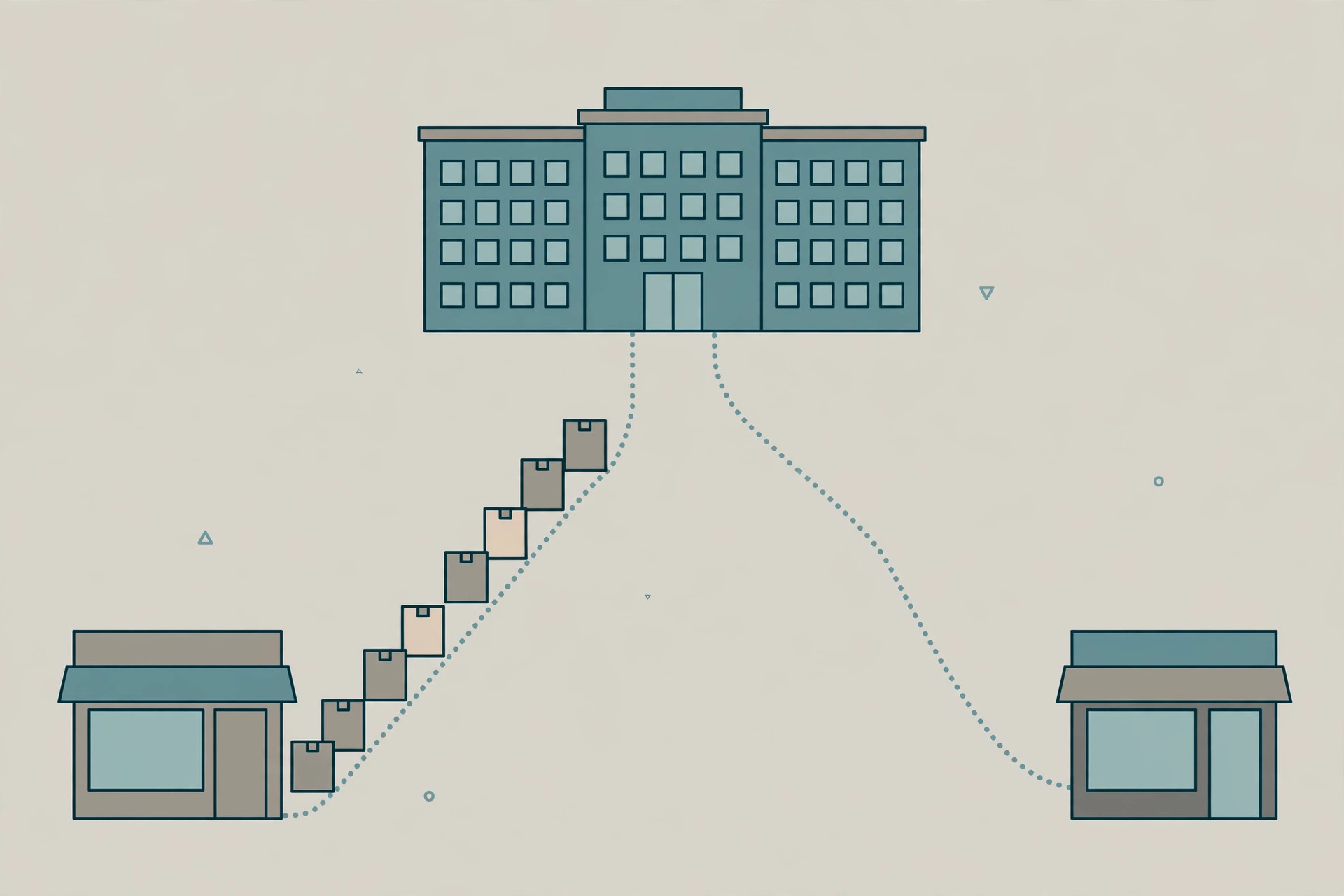
The store calls it “the new price isn’t on the till.” Head office calls it replication lag. Both are describing the same chain: master data is published at head office, Data Director (DD) ships it to the stores, and somewhere in that chain jobs are waiting, erroring, or held. This guide is the diagnosis and recovery companion to the replication mental model — that article explains how the chain works; this one fixes it when it falls behind.
What lag looks like at the store
Lag rarely announces itself as an error at the register. It shows up as stale data: a price change that reached one store and not another, new items missing at a single location, or a store whose data is hours behind while the rest of the estate is current. The important scoping question is which destinations are behind. One store behind points at that store’s jobs or connection. Every store behind points at the source — the scheduler, the DD service at head office, or a job that all destinations share. Record which stores, which data, and since when before opening any tool: the Job Monitor reading only makes sense against that scope.
Read the Job Monitor before touching anything
The Job Monitor listens to every job processed through the DD Service. Its upper grid is Source Processing, the lower grid is Destination Processing, and the default Job View lists jobs by Pack ID — switching to Host View gives one line per DD host with that host’s latest error, which is the faster view when one store is behind. Three readings matter:
- The tray icon and line colours. Green means connected with no errors reported; red means a job has an error. An errored job’s source line shows red — and critically, if a job has an error, all jobs with the same job ID or destination host wait behind it, shown as white lines. Only the first job carries the red warning. A screen full of waiting jobs is usually one failure, not many.
- On-hold lines (yellow-green). A job on hold is not failing — DD has deliberately stopped trying to send it to that host until it is released. Holds happen manually, and automatically: if a Max Error Retry count is set and a job reaches it, DD puts the job on hold by itself.
- Statuses that look wrong but are normal. A destination in sky blue means no status message came back from that destination — the check belongs on the destination’s own DD monitor. Unknown destination status is expected for the other stores in a distribution list and for DD2 or Manual transfers, which never send a status report back. Neither means the data failed to arrive.
Use the monitor’s filters instead of scrolling: Error Only to isolate the first failure, Hold Only to list held jobs, and Filter by Jobid or Source Host to follow one job family. Leave the Live feed on while diagnosing — with it off, job updates are missed and the grid goes stale.
The usual causes, in triage order
| Monitor reading | Documented cause | Where it is fixed |
|---|---|---|
| One red job, many white waiting jobs behind it | The first job errored; same-ID and same-destination jobs queue behind it | Fix or clear the first job — the queue behind it is a symptom |
| Yellow-green lines, nothing moving for one host | Job on hold — manually, or automatically after Max Error Retry was reached | Release the hold once the underlying error is fixed |
| Queue frozen, Waiting status true | DD queue waiting for a result status from job processing | Configuration Tool, Debugging tab — inspect the queue, identify the first pack, reset if frozen |
| OutOfMemoryException querying a table | Linked table job with extremely large data, or a blob field with large data, loaded into memory | Exclude the blob field, or split into separate subjobs without a linked table |
| Timeout expired running a job | SQL timeout — the database process took very long on the SQL server | Database side: why that job’s query is slow, before retrying it into the same wall |
| SaaS jobs fail during their run in DD | Subjob configuration, e.g. the Move Actions flag on INS_ACTIONS / INS_NORMAL_COUNT subjobs, missing web requests, or a SaaS/on-prem version mismatch | Scheduler Subjob List and Web Service Setup at head office; DD configuration for extra fields |
Two cross-cutting causes sit behind many rows of that table. First, version drift: DD behaves badly on old versions — LS Retail’s guidance for a DD that hangs or always shows errors is to upgrade to the latest version first, and any DD older than 3.2.22 should be upgraded when strange errors appear. Mismatched DD versions between hosts cause their own replication faults. Second, generic error codes hide the real fault: error 12305 is a general communication error and 12306 a general database-processing error, and in both cases the detail lives in the Configuration Tool’s Debug streams for the relevant DD process — read it there instead of guessing from the code.
Recovery procedure
- Scope and snapshot. Note which destinations are behind and since when. In the Job Monitor, switch on Error Only and Hold Only in turn and record the first errored job (its job ID and Pack ID) and every held job. Do not cancel anything yet.
- Fix the first failure, not the queue. Open the first red job’s error. For an errored or unprocessed job, the monitor can show its query and result data files — that is the evidence for what DD was sending when it failed. Correct the underlying cause per the triage table: configuration, data, or database.
- Retry deliberately. With the cause fixed, use Retry Now on the affected host — it overrides the Error Wait time instead of waiting for DD’s default retry. Watch the job complete before moving on.
- Release holds only after the fix. Take queues off hold host by host once the error they were sheltering from is resolved. Releasing a hold into an unfixed error just burns the retry count back to the automatic hold.
- Unfreeze a stuck queue only when it is actually stuck. If nothing processes at all, open the Configuration Tool’s Debugging tab, check the Queue status, and use Show 1st Pk to identify the first job in the queue — the one causing the error — before using Reset on a queue whose Waiting status shows it is frozen.
- Handle waiting files separately from active jobs. Jobs waiting in Manual Outgoing folders or Cloud Storage are shown via the Manual button. Reload them with Load TCP for online replication (sent right away) or Load OFF to return them to the queue for an offline pull. Deleting a waiting file does not cancel a job still active in the monitor — cancel active jobs from the main monitor view.
- Verify at the destination, then at the till. Confirm the destination host’s jobs reach Done, then confirm the actual data — the price, the item — is present at the store. Monitor-green is a transport result; the store’s complaint was about data.
One caution on the destructive commands: Cancel asks whether to cancel just the selected job or all jobs with the same job ID for that location. That choice is the difference between clearing a blockage and wiping a job family a store still needs. Cancel is for jobs that are wrong, superseded, or will never succeed — not a shortcut for a queue that is merely slow. If a Lock Code is set in the Configuration Tool, the monitor will ask for it before status-changing commands like Cancel or Hold — that prompt is a checkpoint, not an obstacle.
When the destination is offline by design
Some “lag” is architecture. For offline destinations, the source DD does not try to send at all: the job waits with status None until the destination pulls it. The pull runs on the destination’s Check Interval, so data freshness at an offline store is bounded by that interval plus processing time. To move data now, Pull Now in the Configuration Tool overrides the interval and starts the pull monitor, which triggers the check for new jobs and shows incoming job status. And read an offline host’s monitor correctly: it shows its outbound jobs as Done with the head-office destination status Unknown, because no status update comes back — the processing result lives on the head-office monitor.
What success looks like
Recovery is proven, not assumed: the first errored job has completed or been deliberately cancelled with its cause recorded, no jobs sit on hold without a reason, the waiting white lines behind the original failure have drained, and the specific data the store reported stale — the price, the item — is verified present at the destination. For a SaaS replication setup, LS Retail’s own advice applies to whatever was changed: open the Configuration tool and the job monitor and watch the first few runs of the job before calling it fixed.
FAQ
Dozens of jobs are waiting. Is replication completely broken? Usually not. Jobs with the same job ID or destination wait behind the first errored job. Find the one red line, fix it, and the white lines behind it can move.
A destination shows Unknown. Did the data arrive? Unknown is the expected status for other destinations in a distribution list and for transfers that never report back. Verify on the destination’s own monitor or in the data itself rather than treating Unknown as a failure.
When should jobs be put on hold on purpose? When a host is known to be offline or its error is understood but not yet fixed — a hold stops DD spending retries against a host that cannot answer, and the queue can be released when the host is back. The hold is the pause button, not the fix.
Keep readingNext: POS running slow — a diagnosis routine →