Customer deposits and prepayments at the POS: taking, applying, and refunding
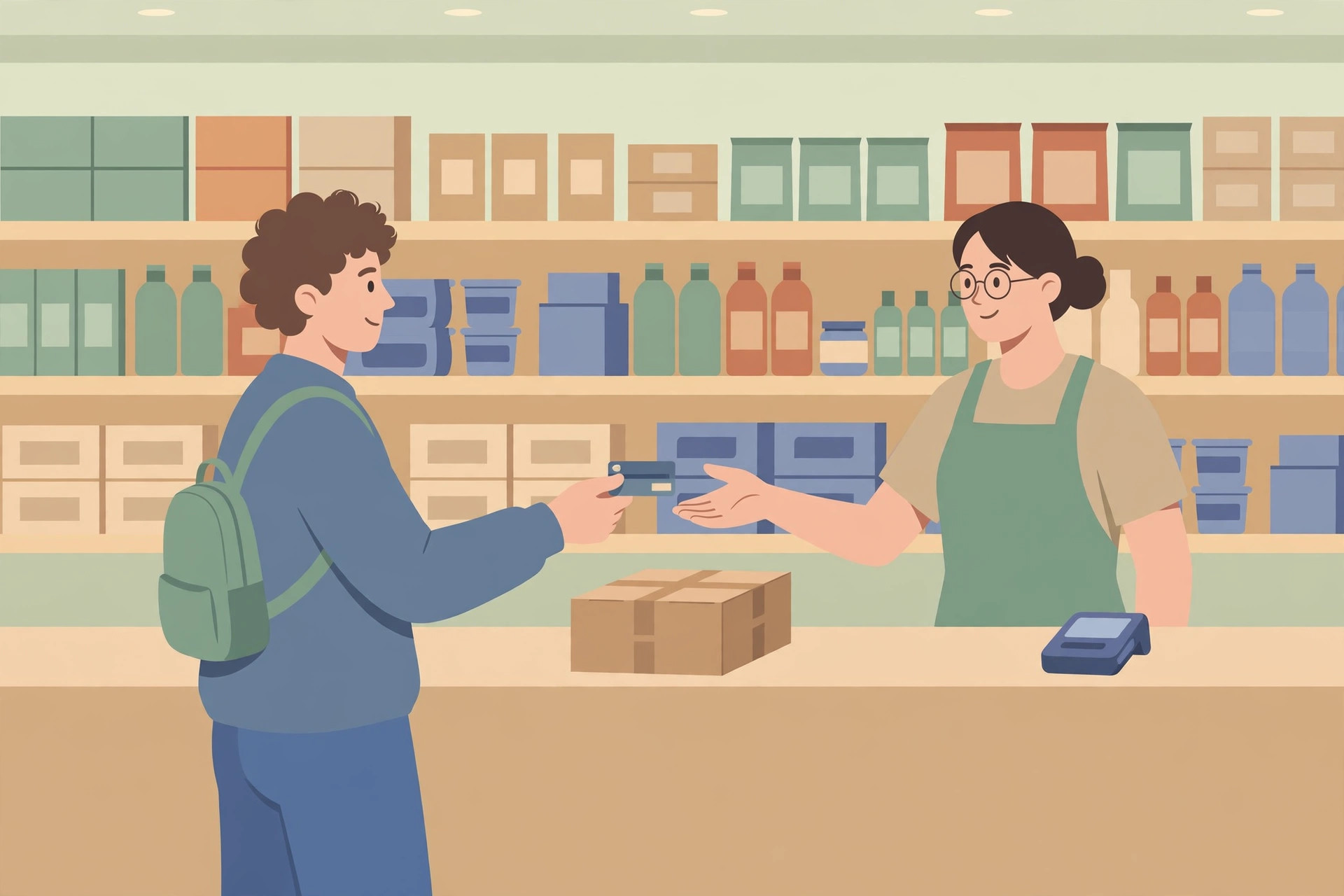
A deposit is the customer's money in your drawer. In Business Central terms, the prepaid amount belongs to the buyer until they receive the goods or services — which is why deposits cause so much confusion when the bookkeeping does not match that simple fact. LS Central has more than one deposit route, and they do not post the same way. This guide separates them.
General information about how the software handles deposits — not accounting or tax advice. How deposits should be taxed and recognized is a question for your accountant.
Three deposit routes — check which one the store is using
| Route | Taken via | Where it posts |
|---|---|---|
| LS reservation prepayment | POS commands PREPAYRES (pick the reservation) or PREPAYCURRES (current reservation) | To the G/L through the POS journal, using the Item (G/L account) defined on the reservation type |
| LS customer order deposit | POS command CO_DEPOSIT_PAYMENT, which adds a payment to a selected customer order; CO_PREPAYMENT asks at order time whether the customer wants to pay now | Against the customer order, which is only finalized and posted when all its items are delivered or canceled |
| Business Central sales prepayment | A prepayment invoice generated from a sales order, before the final invoice | To the Sales Prepayments Account in General Posting Setup — a liability account until the items ship |
The decision framework is simple: follow the order, not the money. If the order lives on the POS as an LS customer order, take the deposit on that order. If it hangs off a reservation or activity, use the reservation deposit commands. If the order is a Business Central sales order, use Business Central prepayments. Mixing routes — a reservation deposit taken against what is really a sales order — is how deposit balances get stranded.
A typical retail example: a kitchen department takes orders that require a deposit varying with order size, using the Deposit Item feature in LS Central; the customer redeems the deposit when collecting the order and pays the remaining balance. One order, one deposit, redeemed at collection — that is the shape every route should keep.
Procedure: take it, apply it, refund it
- Take the deposit. On the POS, run PREPAYRES and select the reservation, or PREPAYCURRES for the reservation already active. For a customer order, use CO_DEPOSIT_PAYMENT on the selected order.
- Enter the amount — within the balance. The deposit amount cannot exceed the current balance outstanding on the reservation. If the reservation carries deposit schedule assignments, the cashier does not type an amount at all: they select which outstanding deposit schedule entry the customer is finalizing.
- Finalize and hand over the receipt. When the entry is finalized on the POS, the journal lines show the deposit entry and the reservation information — that is the customer's receipt for payment. Collect Deposit is also available from Deposit Entries on the Reservation Deposits page in the back office.
- Apply it at the final sale. When the reservation is paid on the POS, any deposits already issued are deducted from the total amount to be paid to finalize it. In the deposit-management flow, deposit assignments are used on invoices or POS transactions: the Folio Payment panel detects unassigned amounts, asks whether to use them, and creates a deposit consumption line in the transaction. A consumption can be voided and recreated with a custom amount via the Consume Prepayment button.
- Refund when the deal dies. Security deposits are returned with RETRNRESDEPOSIT or RETRNCURDEPOSIT: issued deposits are pulled into the POS journal lines for return handling, and finalizing withdraws the amount from the reservation transaction entries. If a reservation or activity is canceled, registered deposits are refunded during the cancellation process at the POS. From the back office, the Refund Deposit button in Deposit Entries refunds a previously collected deposit.
Where each step lands in Business Central
- Taking (LS routes): the deposit posts into the G/L through the POS journal, against the Item (G/L account) defined on the reservation type. If that account is wrong, every deposit lands wrong — check it before the first deposit, not at month-end.
- Holding: for Business Central sales prepayments, the amount sits in the Sales Prepayments Account from General Posting Setup, recorded as a liability until the items ship. A separate G/L account is needed for each VAT identifier, which is why deposit balances sometimes split across accounts.
- Applying: prepayments are applied to the order and the final amount is invoiced — the deposit comes off the balance rather than being charged a second time. A prepayment can be set as a total for the whole order or distributed across its lines.
- Undoing: in the Business Central route, a line with an invoiced prepayment cannot simply be deleted — a prepayment credit memo must be issued first. Expect the same discipline at the till: refund through the deposit functions, never by deleting lines.
Checking what is still outstanding
Deposits and prepayments are controlled from the Reservation Deposits page, and deposit schedule entries show what is still scheduled or outstanding against a reservation. Two habits keep the number honest: reconcile the outstanding deposit list against the deposit liability balance at period end (see the period-close checklist), and treat any deposit whose order was collected long ago as a question, not a balance — either it was never consumed, or the consumption was voided and never recreated. Old unclaimed deposits are also a customer-relations problem, not just a ledger one: somebody paid for something they never received, and the outstanding list is where that surfaces first.
What success looks like
- The customer's receipt matches the deposit entry and reservation shown on the journal lines.
- At collection, the amount asked for is the order total minus deposits already issued — no more, no less.
- After a cancellation or refund, no outstanding deposit remains attached to the dead reservation.
- The outstanding-deposit list and the deposit liability account agree at period end.
FAQ
Can a cashier take any deposit amount? No. The amount cannot exceed the current balance outstanding on the reservation, and where a deposit schedule applies, the cashier selects an existing schedule entry instead of entering an amount.
Is a deposit revenue? Not while it is a deposit. The prepaid amount belongs to the buyer until the goods or services are received; sales prepayments sit in a liability account until the items ship. Recognition and tax treatment are for your accountant — this guide covers the mechanics only.
Can more than one deposit be taken on the same order? In the Business Central route, yes — additional prepayment invoices can be issued, for example when items are added to the order. In the LS routes, each deposit is taken against the outstanding balance, which shrinks as deposits are issued.
IndexBack to all guides →