Cash drawer won't open (or pops open on its own): LS Central POS fixes
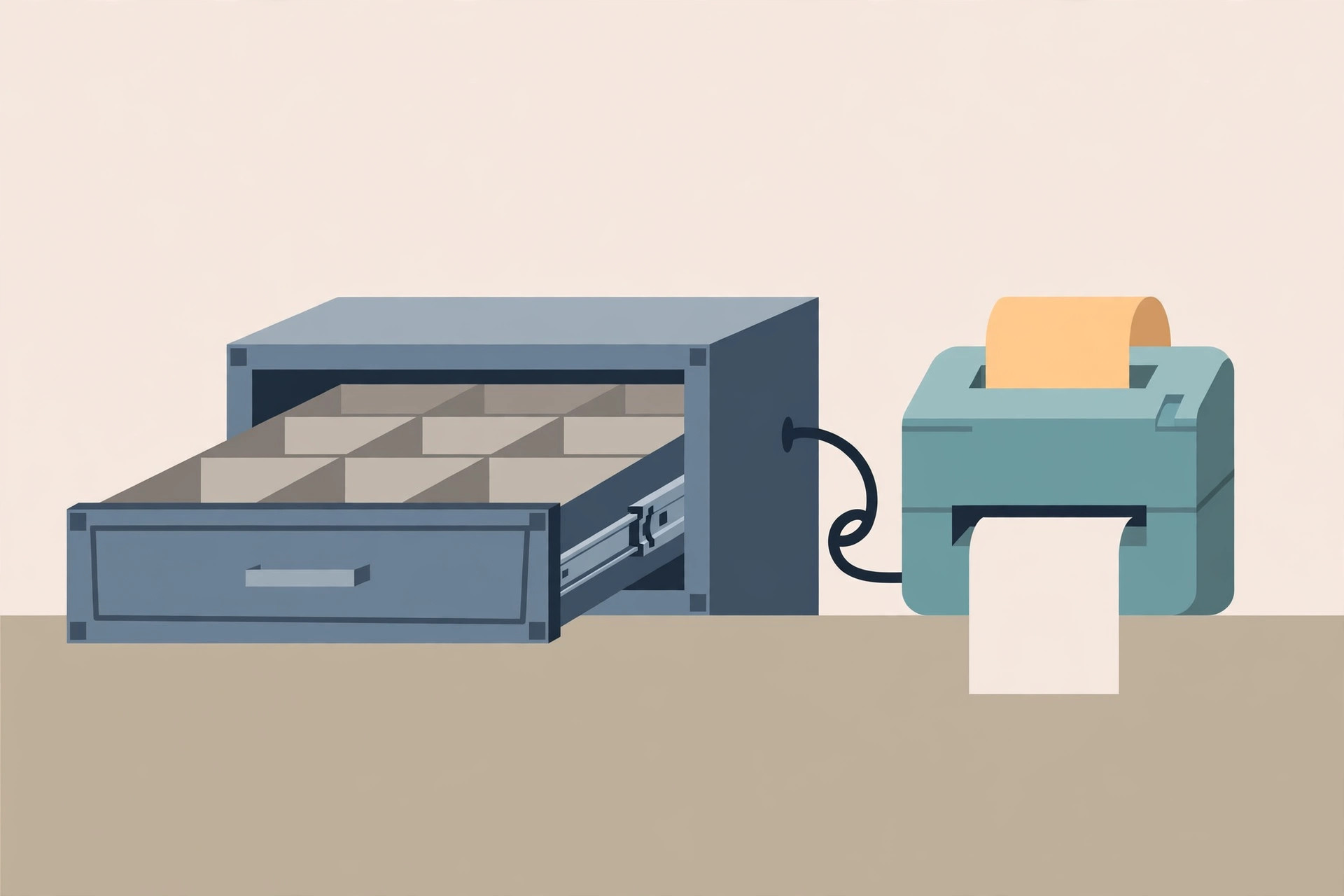
A cash drawer looks like the simplest device in the store: the POS finishes a cash sale and the drawer kicks open. In LS Central there are actually four links between the cashier's keypress and the drawer moving — the hardware profile on the terminal, the Hardware Station service, the receipt printer, and the drawer itself. A failure in any one link looks identical from behind the counter. Guessing which link failed is how stores end up replacing a healthy drawer, then a healthy printer, while the real fault — a drawer mapped to the wrong printer after a swap — sits untouched. Work the chain in order instead.
First, name the failure
There are three distinct faults, and they point at different links:
- No sound, no movement. The solenoid inside the drawer never fires. The trigger never arrived: the cause sits in the electrical or command chain — wrong port, damaged or differently wired cable, the printer not configured to send a drawer-kick pulse, the driver setting off, or a trigger voltage mismatch.
- A click, but the drawer stays shut. The trigger arrived and the latch did not release. That is mechanical: a worn latch or roller, a coin or folded note lodged behind the release mechanism, a front panel pushed out of alignment, or compartments loaded so full that the contents press against the drawer face and hold it closed.
- Nothing is wrong with the chain at all. The drawer is mechanically locked. A key lock left in a position that overrides the electronic release — often after a shift change, a cleaning round, or a key handover — defeats a perfectly healthy setup. Check this first; it takes seconds.
There is also the mirror-image fault: the drawer pops open when it should not — on a card sale, on a reprint, or when a neighbouring terminal runs a transaction. That is covered in its own section below, because the suspects are different.
The chain in an LS Central store
LS Central does not talk to the drawer directly. The Hardware Station is a device service for OPOS and other retail devices: when LS Central needs a device, it starts a dialog with the Hardware Station, and the Hardware Station handles the actual communication, so LS Central itself does not need to know the device specifics. Cash Drawer and Printer are both on its list of supported device types, alongside EFT, line display, MSR, scale, and scanner.
Which devices a terminal uses is decided by its POS Hardware Profile. The Hardware Station is synced to a hardware profile: on the profile's LS Hardware Station FastTab you set the sync option and the Hardware Station host, and the Detect Hardware action pulls every device loaded in the Hardware Station management portal into the profile, each in its own FastTab. Two consequences matter for troubleshooting:
- Profile assignment is inherited. If the Hardware Profile field is empty on both the store card and the terminal, the ##DEFAULT profile is the active one. A profile set on the store card applies to that store's terminals whose own field is empty. Different printer types are exactly why separate hardware profiles exist — so a terminal can easily be running a profile written for a different printer and drawer combination than the hardware physically in front of it.
- Manual edits are not proof. You can edit the device FastTabs by hand, but a device added manually is not guaranteed to be loaded into the Hardware Station. A drawer that looks correct on the profile may simply not exist as far as the service is concerned.
Below the software sits the physical link most drawers actually use: the drawer cable plugs into the cash drawer port on the receipt printer — on newer printer models that port is marked with a picture of a cash drawer and the letters DK. The printer triggers the drawer, which is why a printer that is off, out of paper, or not printing is also a drawer problem until proven otherwise.
Procedure: isolate the failing link
Change one thing at a time, and retest after each step with the same action — a no-sale drawer open or a small cash sale — so results are comparable.
- Check the key lock and the drawer itself. Turn the lock to its normal operating position, open the drawer with the key or manual release, empty it, and look for a coin, note, or foreign object behind the latch and in the slide path. Close it and retest. If the solenoid fires but the drawer still will not release after clearing an obstruction, the latch or release assembly is worn — that is a parts case, not a configuration case.
- Confirm the printer is alive. The receipt printer must be turned on and printing correctly, because it is the device that triggers the drawer. Print a receipt. If receipts are also failing, fix the printer first — see our receipt printer troubleshooting guide.
- Reseat the drawer cable at both ends. Drawer end and printer DK port. A cable in the wrong printer port, or in a port on a different printer entirely, is a no-trigger fault with a healthy drawer.
- Ask whether a kick was ever sent. Device logs that record Kick commands tell you whether the system is even attempting to open the drawer. A kick in the log plus a silent drawer moves suspicion down the chain to cable, port, and drawer. No kick at all moves it up the chain to the POS configuration.
- Check the trigger settings. Common configuration causes: the cash-drawer trigger option disabled or unset in the receipt printer driver; the drawer mapped to a printer other than the one it is physically connected to — frequent after a terminal or printer is replaced; the receipt template or transaction type in use not including the open-drawer command; and a terminal with no DK port while the drawer is connected to a different device.
- Verify the LS Central layer. Open the POS Hardware Profile the terminal is actually running — remember the store and ##DEFAULT inheritance above — and confirm the Hardware Station sync and host are correct. If no port is specified, the default Hardware Station port is 8082, and that port must be open on the Hardware Station machine's firewall. Re-run Detect Hardware rather than trusting hand-edited device lines.
- Test below the POS. Vendor OPOS utilities can fire the drawer directly: in the Epson OPOS setup, the Check Health Interactive test for the cash drawer makes the drawer open, with the drawer set up on the same port the printer uses. Drawer test programs from drawer manufacturers do the same job, reporting the drawer status and firing it with a test button. If the drawer kicks here but not from the POS, the hardware chain is good and the fault is in the profile, the mapping, or the POS settings. If it does not kick here either, the fault is physical.
- Swap one variable. With more than one lane, swap hardware to isolate the faulty piece: known-good cable first, then the drawer on a known-good printer port, then the suspect drawer on a known-good lane. One swap per test. If several lanes failed at the same time, stop swapping hardware and suspect a shared change instead — a driver update, a replaced printer model, or a peripheral remapping.
If the drawer pops open on its own
Unwanted openings are a security and reconciliation problem, not just an annoyance, so treat the cause hunt seriously:
- It opens on every print, not just cash sales. The drawer is being fired by the printer's print path rather than by the tender. Review which transaction types and receipt templates carry the open-drawer command, and whether this terminal's drawer has been mapped to a printer that also serves other jobs.
- It opens when another lane sells. Crossed mapping: this drawer is assigned, in a hardware profile, to a printer or Hardware Station device belonging to a different terminal. Check which profile each terminal is really running, including the store-level value and the ##DEFAULT fallback.
- It opened after hardware was replaced. A replaced printer or terminal is the classic moment for a drawer to end up mapped to the wrong printer. Re-check the mapping before blaming the new hardware.
- Someone is opening it manually. Drawer settings in the POS decide when the drawer may open and who may open it without a sale. If the physical chain tests clean, review the manual-open permissions and the no-sale settings rather than the hardware.
Symptom-to-layer table
| What you see | Most likely layer | First test |
|---|---|---|
| No sound, no movement, receipts print fine | Trigger settings or mapping | Check for a Kick command in the device log; review the driver trigger option |
| No sound, receipts also failing | Printer | Restore printing first; the printer triggers the drawer |
| Click, drawer stays shut | Drawer mechanics | Open manually, empty it, clear the latch and slide path |
| Drawer fires from a vendor test, not from the POS | Hardware profile / Hardware Station | Confirm the active profile, host, and port 8082; re-run Detect Hardware |
| Every lane failed together | Shared change | Look for a driver update, printer swap, or remapping before touching hardware |
| Opens on other lanes' sales or non-cash prints | Mapping / template settings | Check drawer-to-printer mapping and which templates carry the open command |
What success looks like
Run three tests at the lane, in this order: a cash sale opens the drawer exactly once, at the point in the transaction where your configuration says it should; a card-only sale with a printed receipt leaves the drawer closed; and a permitted manual open works while an unpermitted one does not. Then repeat the cash sale once more after closing and reopening the drawer — intermittent faults love to pass a single test. If all three behaviours are correct twice in a row, the chain is fixed. If the fault returns on the same lane within days, it was never isolated: go back to the step where the symptom changed, not to the parts shelf.
FAQ
The drawer worked yesterday and nothing was changed. Where do I start?
With the two fastest physical checks: the key lock position (locks get moved during cleaning
and handovers) and the cable at the printer's DK port. Then check the printer itself — a
printer fault and a drawer fault arrive together because the printer fires the drawer.
Can I keep trading while the drawer is dead?
Yes, briefly: open it with the key or manual release for cash sales and record that you did.
Treat it as a same-day fix, though — a drawer that only opens manually defeats the POS
controls on no-sale opens.
We replaced the receipt printer and now the drawer never opens. Coincidence?
Probably not. A drawer mapped to the old printer, or a trigger option unset in the new
printer's driver, are both documented causes after a replacement. Check the mapping and the
driver before suspecting the drawer.